Order spreadsheets and shipping files#
1. Select orders to export#
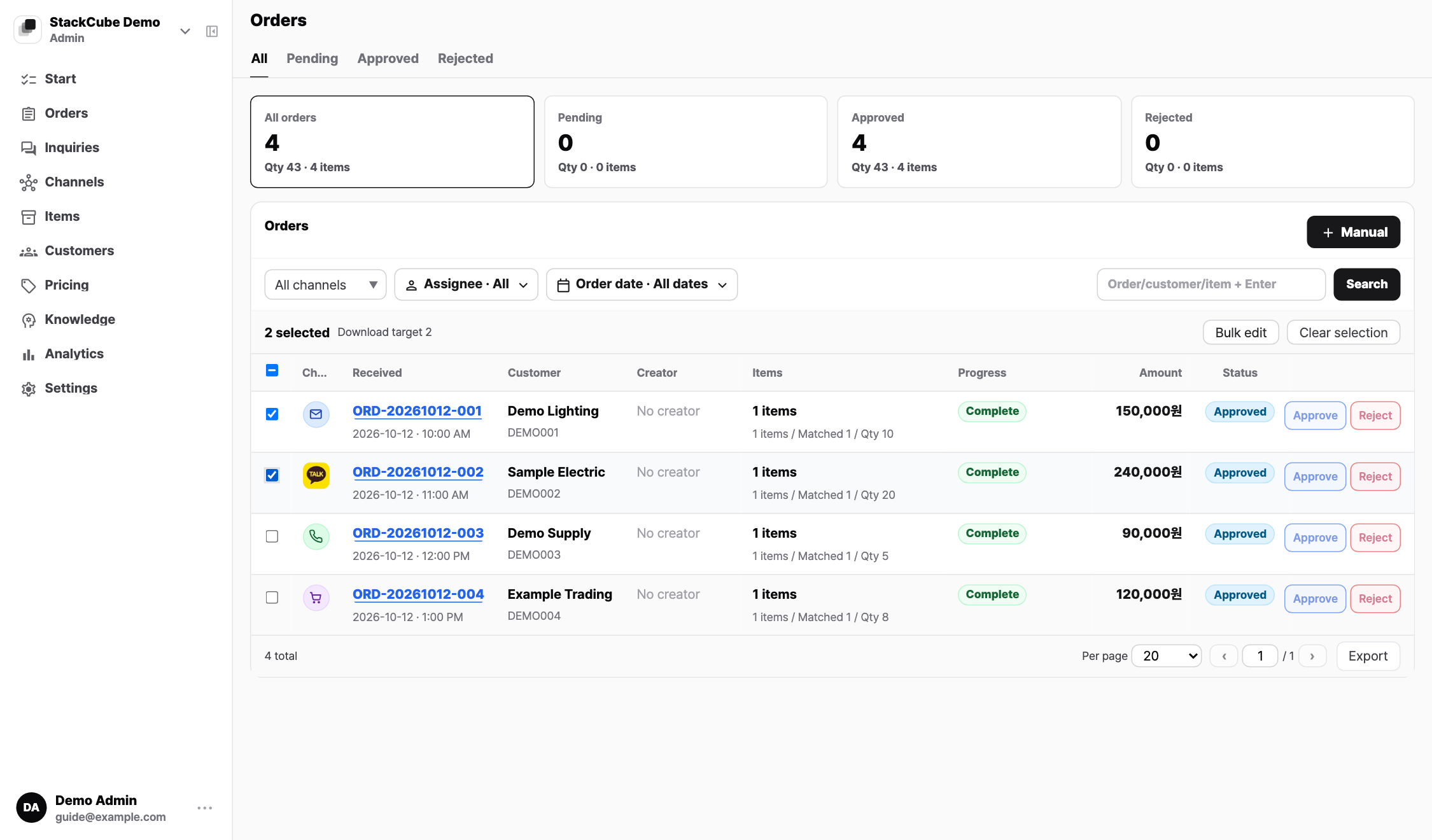
- Find orders in Order management. Narrow the list by status, date, or search terms as needed.
- Select the checkbox on the left of each order row. You can select multiple orders.
- Check the selected count, then click Export at the bottom right of the list.
2. Choose an export method#
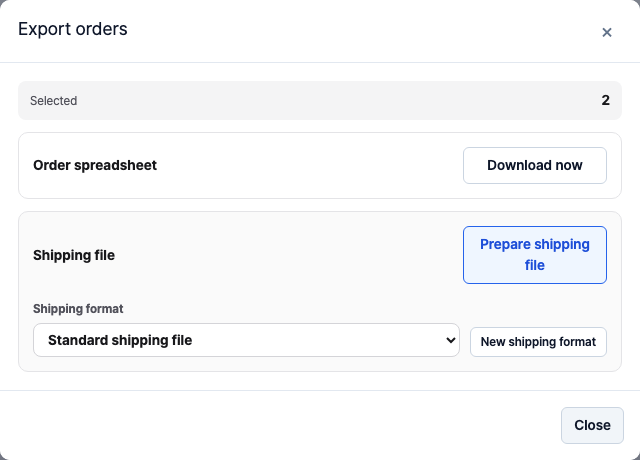
Confirm the Selected orders count in the dialog, then choose the file you need.
| What you need | Choose |
|---|---|
| An order spreadsheet | Order spreadsheet → Download now |
| A carrier upload file | Shipping format → Prepare shipping file |
3. If you need a shipping file#
- Choose a carrier or saved format under Shipping format.
- Click Prepare shipping file and check recipients, addresses, phone numbers, and quantities. Logen and Daesin presets use box quantity.
- Edit values as needed, then click Export N shipments. Clear any row or cell selection to show the button.
- Upload the file to your carrier system. Submission and label creation happen there.
Available formats#
| Format | File type |
|---|---|
| Order spreadsheet | XLSX |
| Carrier-neutral shipping preset | CSV |
| Custom shipping format | CSV or XLSX |
Korean organizations also receive CJ Logistics, Lotte, and Hanjin CSV presets, plus Logen and Daesin XLSX presets. If your team has a saved format tested with its carrier, select it. Contract-specific freight values and columns may differ from the preset.
The Logen and Daesin presets are based on official example or sample columns. See Upload to Logen and Upload to Daesin for file download and carrier registration guidance.
Before exporting#
- File exports are not restricted to approved orders. Check approval and previous carrier submissions before shipping.
- Order spreadsheet includes order numbers, shipping details, item summaries, quantities, and notes. It is not an ERP document with prices; automatic Ecount transfer is a separate feature.
See Edit shipping files for merging, splitting, and resuming drafts, or Custom shipping formats for columns, fixed values, and sender settings.