Add and manage customers#
Customer records identify who placed an order and which prices apply. Email, existing KakaoTalk rooms, and SMS can receive an order before the customer is registered. Review the unassigned order first, then connect a customer when needed.
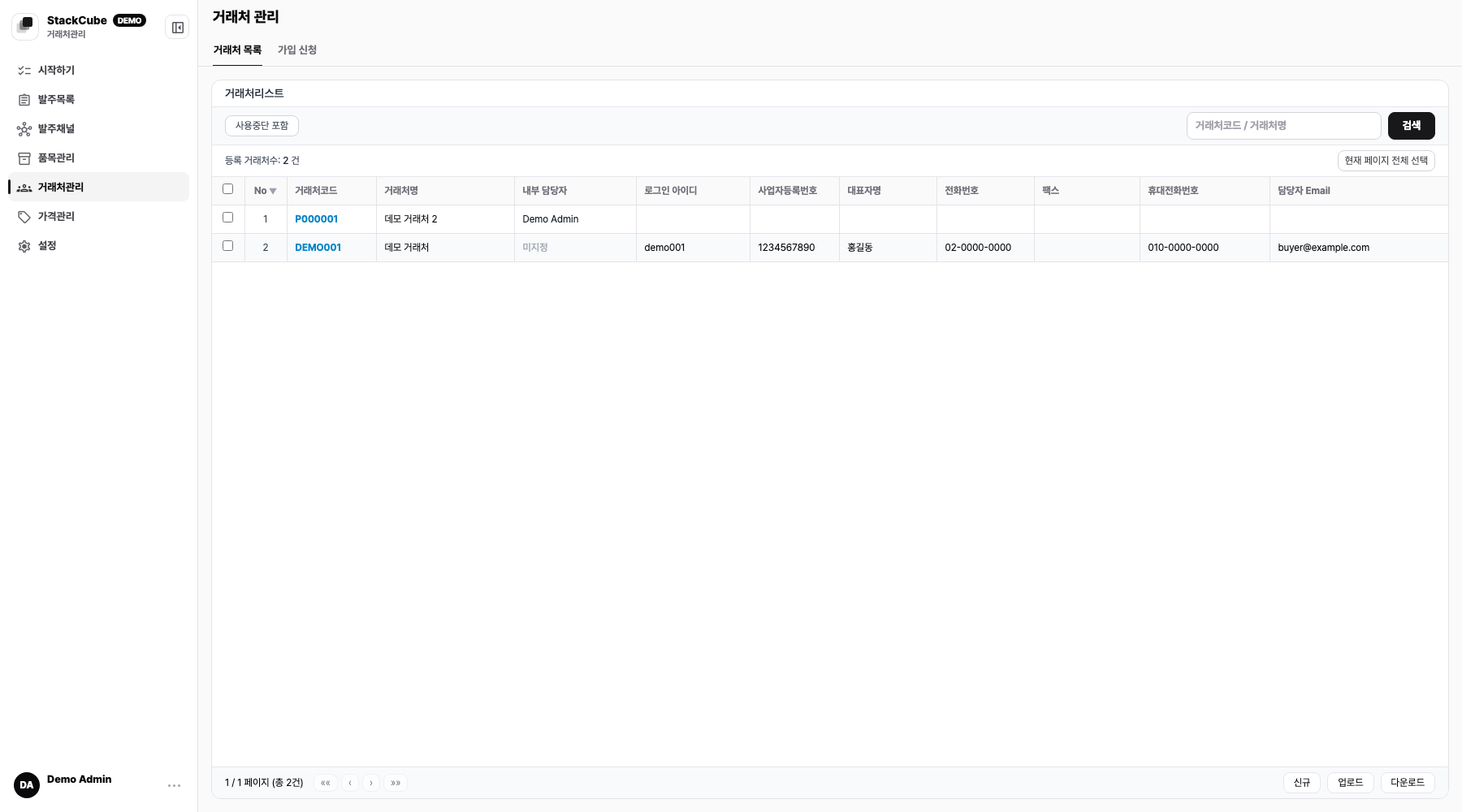
The KakaoTalk chatbot and order portal require a customer record. The chatbot verifies a registered customer ID, business registration number, or customer code. The portal requires a customer login. Register these customers before opening either channel to them.
See Sync Ecount customers and prices to import your Ecount customers.
Editing customers while ERP is connected#
An active Ecount integration restricts changing existing customer codes and deleting customers. Unlocked fields, such as names and contact details, remain editable, but these edits do not update the Ecount customer record.
Update master data in Ecount and import it with customer sync. File uploads can only update existing customers. See Customer imports for details.
Add a customer directly#
- Open Customers and select New.
- Accept the generated customer code or enter one, then add the company name.
- Add the contact email and mobile number used for orders.
- For portal access, add a login ID and initial password.
- Save the customer. Address, internal assignee, and price tier can be added later.
Customer profile#
At minimum, keep these fields current:
- Company name
- Primary contact name
- Email and phone number
- Address and postal code
- ERP or internal customer code
If your ERP has customer codes, use the same codes in StackCube. StackCube includes them when sending approved orders to the ERP.
Internal assignee#
Assign an internal owner when a customer has a specific salesperson or account manager. Use the assignee filter in Order management to find their orders.
Assigning someone does not approve an order. The assigned person still needs to review it before approval.
Source recognition#
Add the customer's email, phone number, and KakaoTalk connection details. Orders from different channels will still match the same customer.
Examples:
- Email purchase orders from a buyer inbox
- KakaoTalk messages from a store manager
- Excel files from a distributor
- Private portal orders from repeat buyers
Customer-specific pricing#
Use price tiers and rules for negotiated prices and discounts. Compare the submitted and calculated prices before approval.
Start with the prices needed for real orders. Add an exception when the same mismatch repeats.
Portal access#
For repeat customers, create a portal account after checking the visible items and prices. Then send the portal address and login details.

Not every customer needs the portal. Start with customers who reorder the same items often.
Bulk imports and signup requests#
Use a CSV or XLSX file for a large customer list. Process portal requests in Customers > Signup requests.
See customer imports and signup requests for the full instructions.
When sharing an account, send the portal address and customer instructions. See Order portal card payments for customer payment overrides.