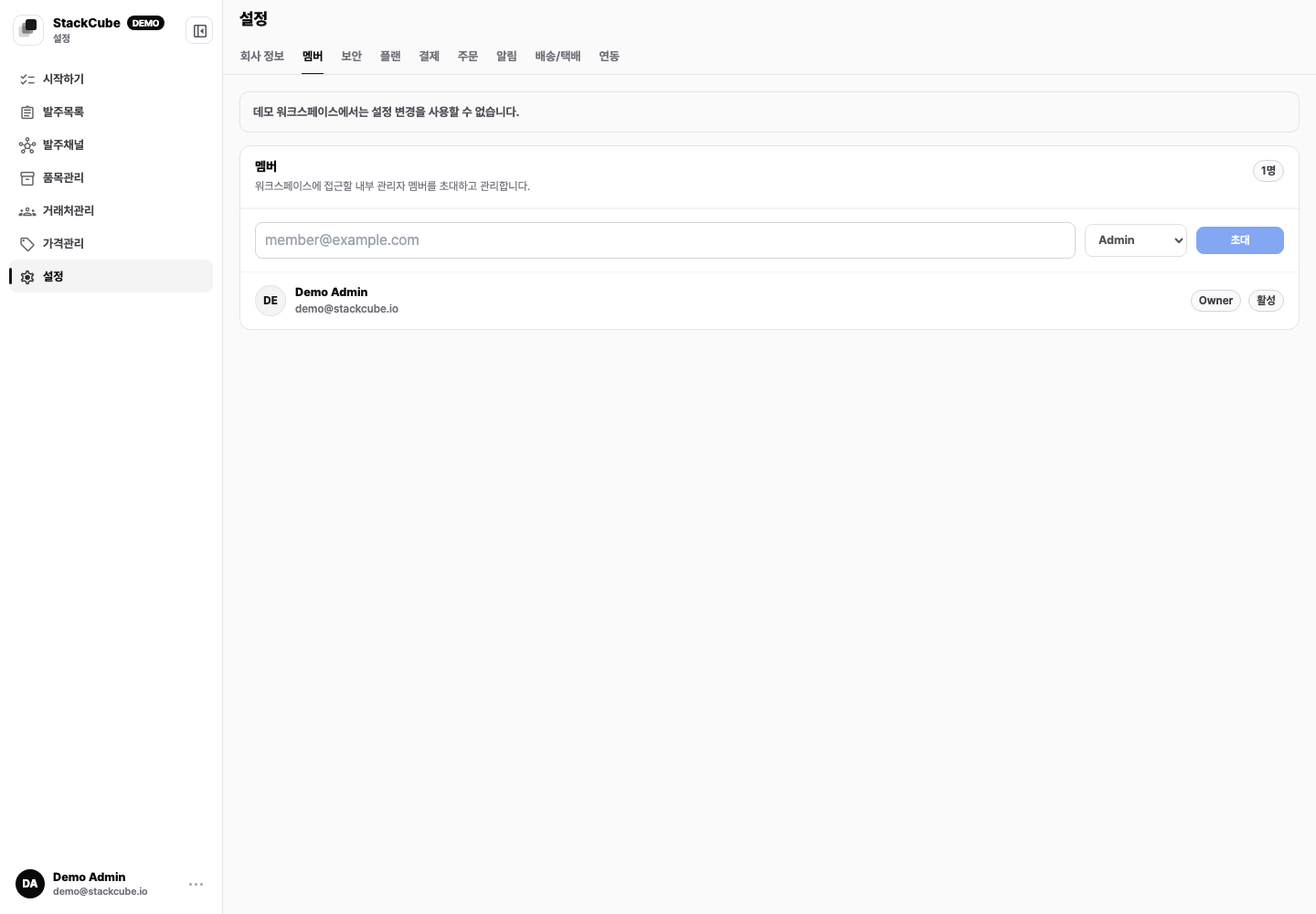
StackCube uses a role-based access model to make sure every team member has exactly the permissions they need — no more, no less. Whether you are setting up a small team where one person handles everything or a larger organization where order reviewers, approvers, and administrators all have distinct responsibilities, roles give you precise control over who can do what inside your workspace. This guide explains how to invite team members, what each role allows, and how Enterprise accounts can extend role management across multiple entities.
StackCube is built on a least-privilege access principle. Each role grants only the permissions required for that function. Assigning a more permissive role than a team member needs increases exposure if their account is ever compromised. Review your team’s roles periodically and downgrade any that are no longer appropriate.

Role types

Reviewer

Reviews incoming orders in the AI queue. Can confirm AI-matched line items, flag discrepancies, and add notes. Cannot approve orders for fulfillment or modify workspace settings.

Approver

Has all Reviewer permissions, plus the ability to approve orders and send them to fulfillment. Suited for team leads or senior operations staff who are accountable for order accuracy.

Admin

Full access to workspace settings, including managing customers, the item catalog, channels, and team members. Admins can invite and remove users and change role assignments.

Role permissions at a glance

PermissionReviewerApproverAdmin
View order queue
Confirm AI-matched lines
Flag orders for review
Approve orders
Manage customers
Manage item catalog
Manage channels
Invite and manage team members
View workspace settings

Invite a team member

1

Open Team Settings

Navigate to Settings → Team in your workspace sidebar. You will see a list of all current team members and their assigned roles.
2

Click Invite Member

Click Invite Member and enter the team member’s work email address. StackCube will send them an invitation email with a link to set up their account.
Invitations expire after 72 hours. If a team member does not accept within that window, you can resend the invitation from the Team Settings page.
3

Assign a role

Select the role that matches this person’s responsibilities:
  • Choose Reviewer for team members who process orders day-to-day but should not have final approval authority.
  • Choose Approver for team leads or senior staff who sign off on orders before fulfillment.
  • Choose Admin only for team members who need to manage workspace configuration. Limit the number of Admin accounts to reduce risk.
Start new team members with the Reviewer role while they are getting familiar with the platform. You can promote them to Approver once they are comfortable with the review workflow.
4

Confirm the invitation

Click Send Invitation. The team member will receive an email prompting them to create their password and access the workspace.

Manage existing team members

Change a role

Open a team member’s record in Settings → Team and select a new role from the dropdown. The change takes effect immediately — no need for the member to log out and back in.

Remove a member

Removing a team member revokes their access immediately. Their activity history (order reviews, approvals, notes) is retained for audit purposes.

Resend an invitation

If a pending invitee has not accepted yet, you can resend their invitation from the Team Settings page. Resending generates a fresh link and resets the 72-hour expiry.

View member activity

Admin users can review a log of each team member’s actions — including orders reviewed and approved — to support oversight and auditing.

Enterprise: multi-entity roles

For organizations operating across more than one business entity — such as separate regional subsidiaries or brands — the Enterprise plan extends the role model to support multi-entity access. A team member on the Enterprise plan can be granted a role in multiple workspaces simultaneously, with permissions configured independently for each entity. This means a regional administrator can have Admin access in their local workspace while holding only Reviewer access in a parent or sibling entity. Centralized operations teams can monitor all entities from a single login without having full administrative rights everywhere.
Multi-entity role configuration is handled during the Enterprise onboarding process with the help of the dedicated StackCube onboarding team. Once your multiple workspaces are established, your primary Admin can assign entity-level roles to team members from each workspace’s Team Settings page. Contact support@stackcube.io to discuss your multi-entity setup requirements.
Yes — on the Enterprise plan, each workspace maintains its own role assignment for a given user. The same person can be an Approver in one workspace and an Admin in another. Role changes in one workspace do not affect the same user’s role in any other workspace.

Security and access control

StackCube enforces security at every layer of team access. All team member actions are logged for audit purposes, giving you a complete record of who reviewed, approved, or changed anything in the workspace.
If a team member leaves your organization, remove them from the workspace immediately. StackCube does not automatically detect inactive accounts. Timely off-boarding is the most important step you can take to protect your workspace after a personnel change.
If you suspect unauthorized access to your workspace, contact support@stackcube.io immediately. The StackCube security team can assist with account recovery, access revocation, and reviewing activity logs.