Build the item catalog#
You do not need to import every item before connecting a channel. Start with the items that fail to match in the first real order.
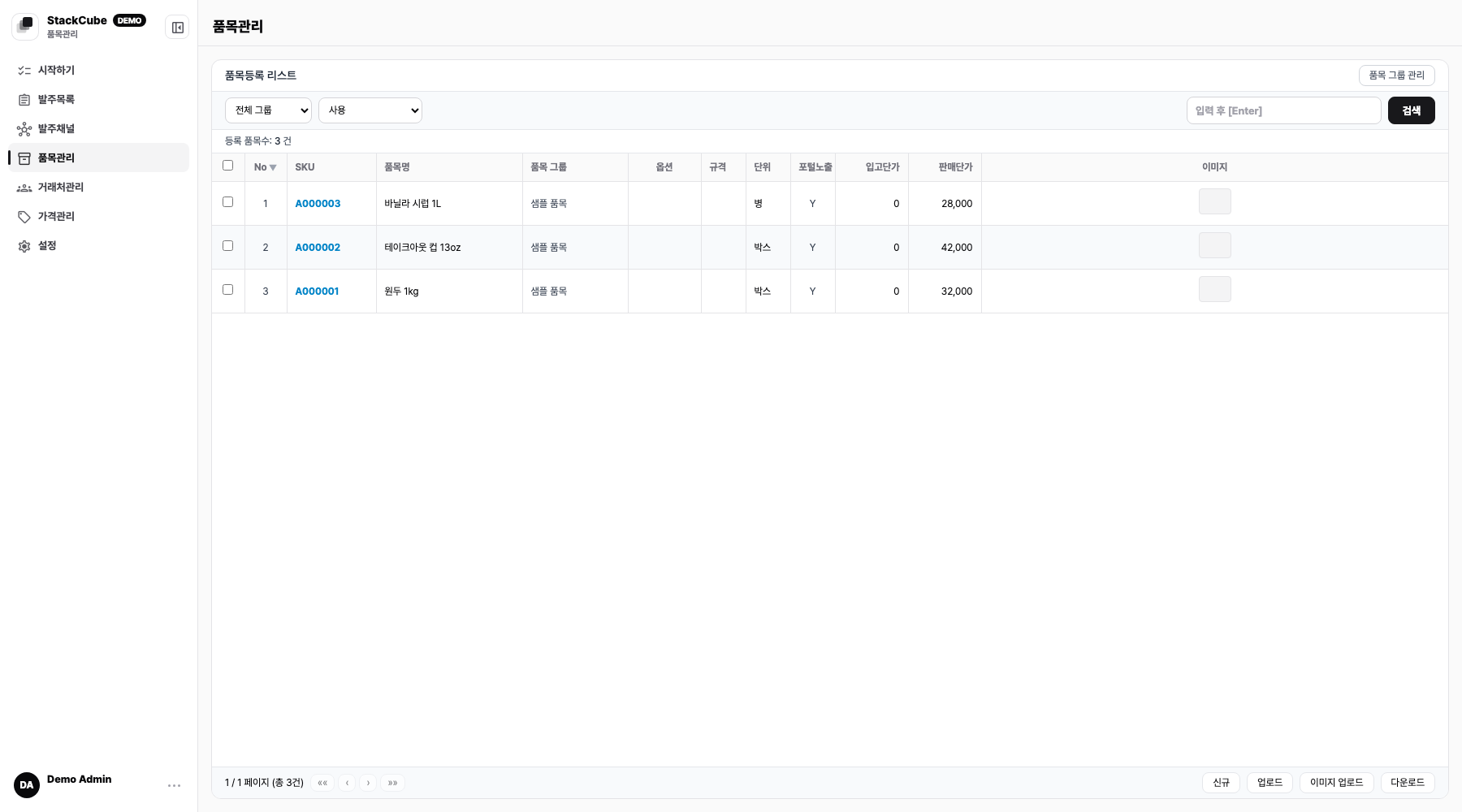
See Sync Ecount items to import your Ecount catalog.
Editing items while ERP is connected#
An active Ecount integration locks existing item codes, names, specifications, and SKU identity fields, and prevents item deletion. Check the ERP master-data badge and each field's explanation.
Update locked master data in Ecount, then run item sync. Fields that are not locked remain editable in StackCube. Bulk CSV/XLSX item uploads are also restricted; import ERP items through sync.
Choose a registration method#
| Catalog situation | Method |
|---|---|
| You need only a few items for the first order | Add them directly in Item management |
| You manage items in a CSV or spreadsheet | Upload a CSV or XLSX file |
| Items are already maintained in Ecount | Sync the ERP catalog |
See Bulk item management for larger imports.
Enter the first fields#
| Field | What to enter |
|---|---|
| Item code or SKU | The code your company uses to identify the item |
| Item name | The standard name shown during order review |
| Specification and unit | The rule for interpreting boxes, pieces, kilograms, or other quantities |
| Status | Keep items used in new orders active |
| Default sales price | The price used when no customer-specific rule applies |
For order portal items, also check the image, description, options, and portal visibility.
Add aliases#
Add an alias when a customer uses a different name from the catalog.
For example, if the standard name is Americano Beans 1 kg but an order says Americano beans or beans 1 kilo, save those terms as aliases.
Use aliases for repeated abbreviations, former names, customer-specific terms, and common typos. Avoid adding every one-off phrase because broad aliases can create incorrect matches.
Separate options and pack sizes#
Create a separate option or SKU when color, size, volume, or pack size changes what fulfillment ships. Do not keep a fulfillment-critical difference only in a note.
If 1 box, 12 pieces, and 1 piece represent different quantities, agree on unit and conversion rules with the order review team.
Add customer-specific prices#
Enter a default sales price first. Add a price tier or rule only for customers that use a different price. See Customer-specific pricing.
Return to the first order#
After adding the item, return to the first order and check:
- The customer term matches the new item.
- Quantity and unit are correct.
- The default or customer-specific price is applied.
- Required review warnings are resolved.
When the same correction appears in several orders, update the item or alias instead of editing every order line.