Manage items in bulk#
For a large catalog, open Item management > Upload and import a CSV or XLSX file from your ERP or storefront.
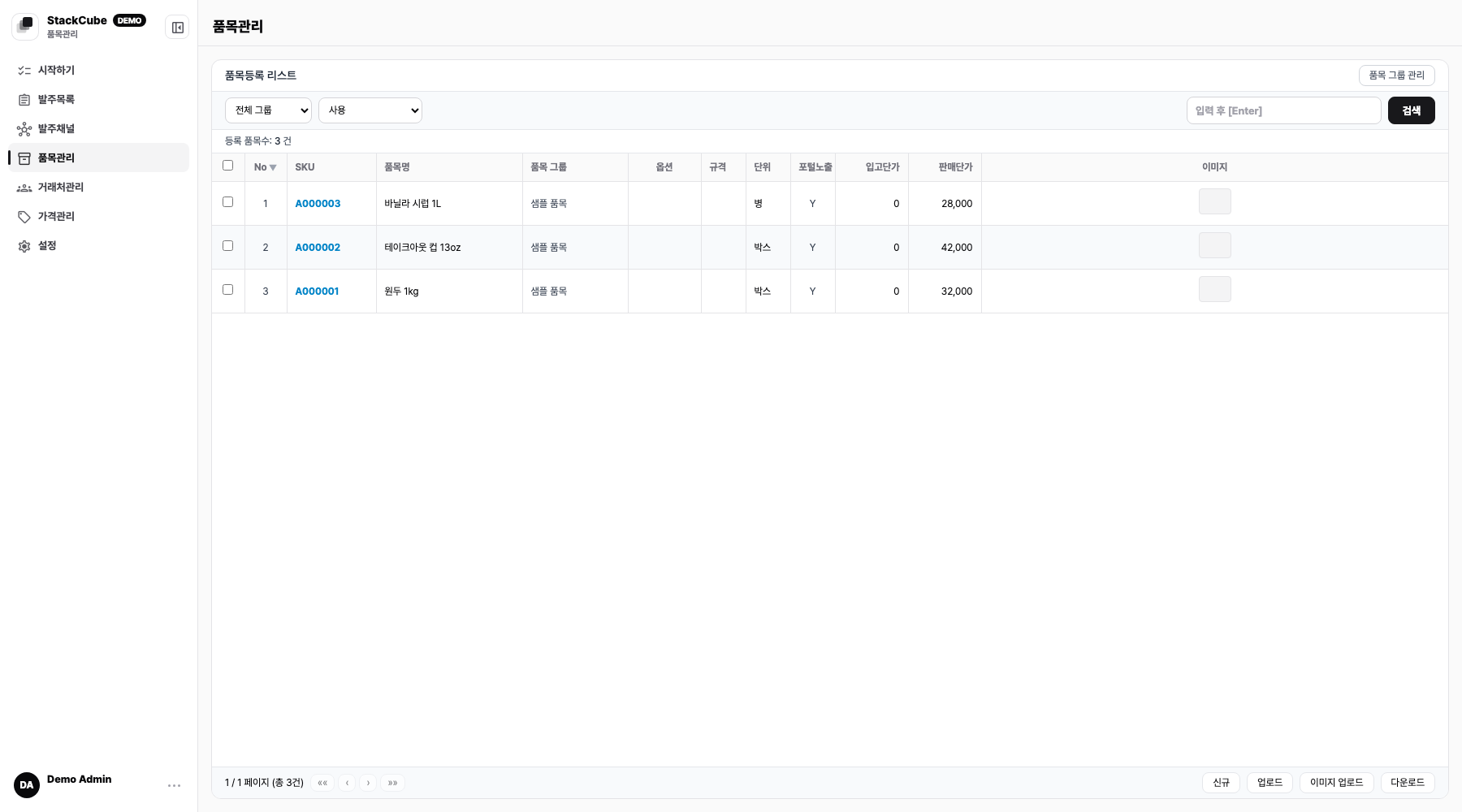
Upload an item file#
1. Choose an upload mode#
Choose Create new or Update existing items. Create new stops when an item code or SKU already exists. Update existing uses registered item codes and leaves blank cells unchanged.
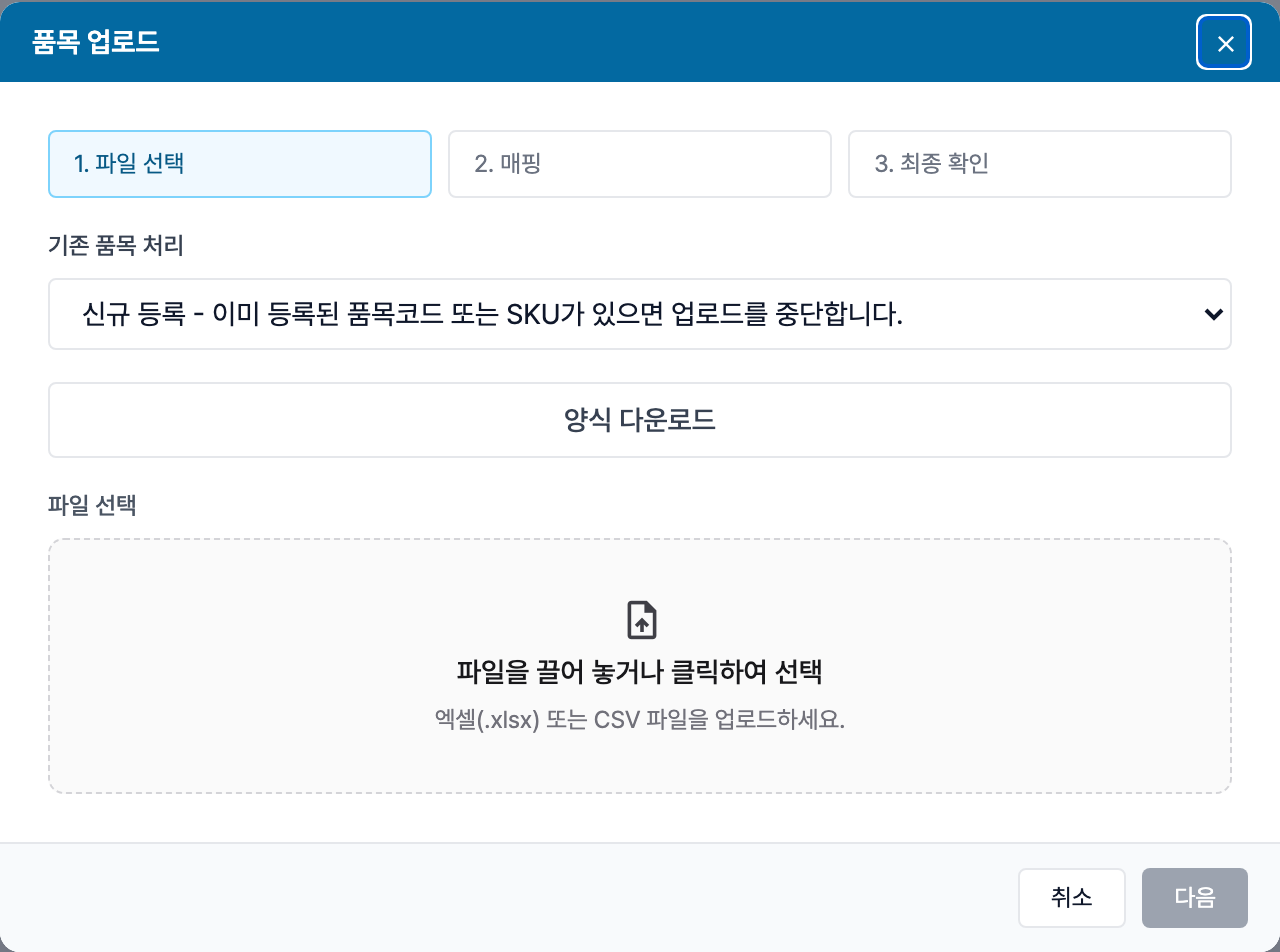
2. Prepare the file#
Select Download template and enter items on the Upload sheet in the XLSX file. You can also upload an existing CSV or XLSX file without using the template.
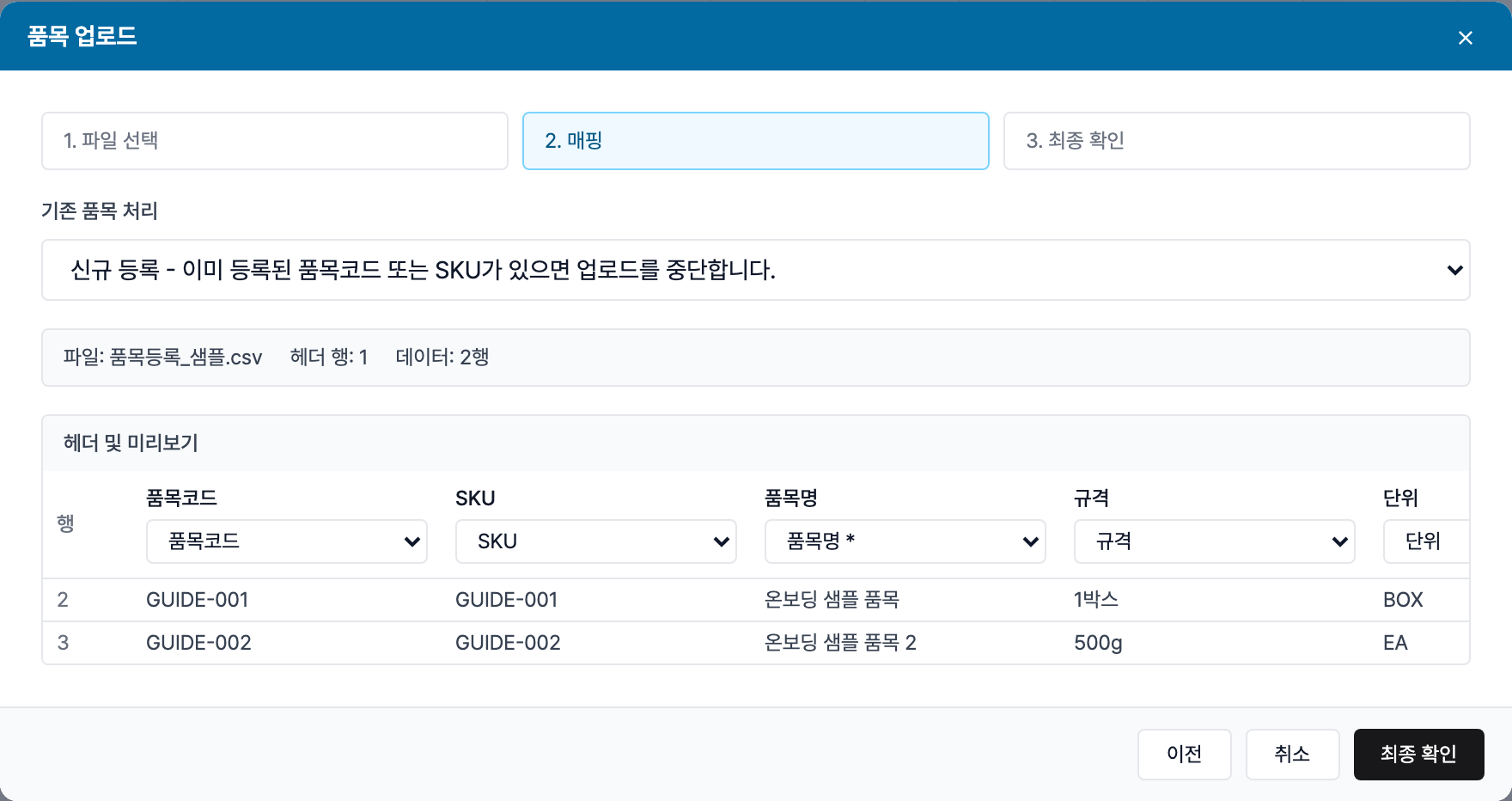
3. Map the columns#
StackCube reads the file headers and connects them to item fields. Check item code, SKU, item name, and the other columns, and correct any mismatches. The original headers do not need to match StackCube labels.
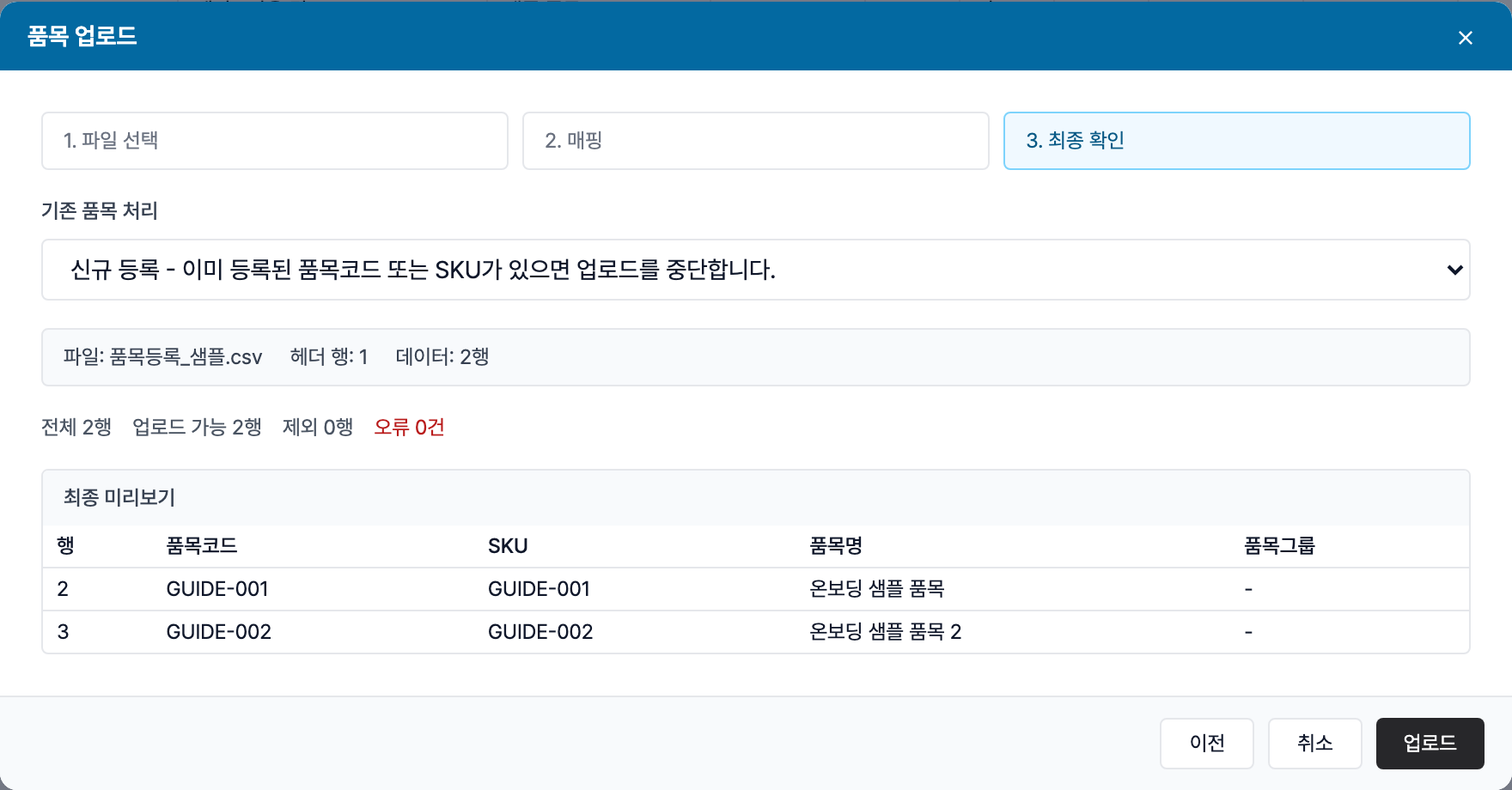
4. Review and upload#
Review the total, valid, skipped, and error counts. If there are no errors, check the final item preview and select Upload.
Common fields include item code, SKU, item name, item group, spec, unit, portal visibility, option names and values, purchase price, sales price, image, and use status.
Start with a few rows in the template. Before a bulk update, export the current item list and keep a copy.
Item groups#
Item groups affect both internal review and order portal categories. An item can belong to more than one group and will be discoverable through each assigned category.
In an upload file, write a full group path as Parent / Child and separate multiple paths with |, for example Food / Squid | Cutlets. The first group takes priority when multiple group price rules match. An item remains visible in the portal when at least one assigned group is visible.
Create the main groups before upload. If new groups keep appearing, check whether the categories are too specific.
Upload images in bulk#
Use bulk image upload when many portal products need images. Name files so they can be matched to an SKU or item code.
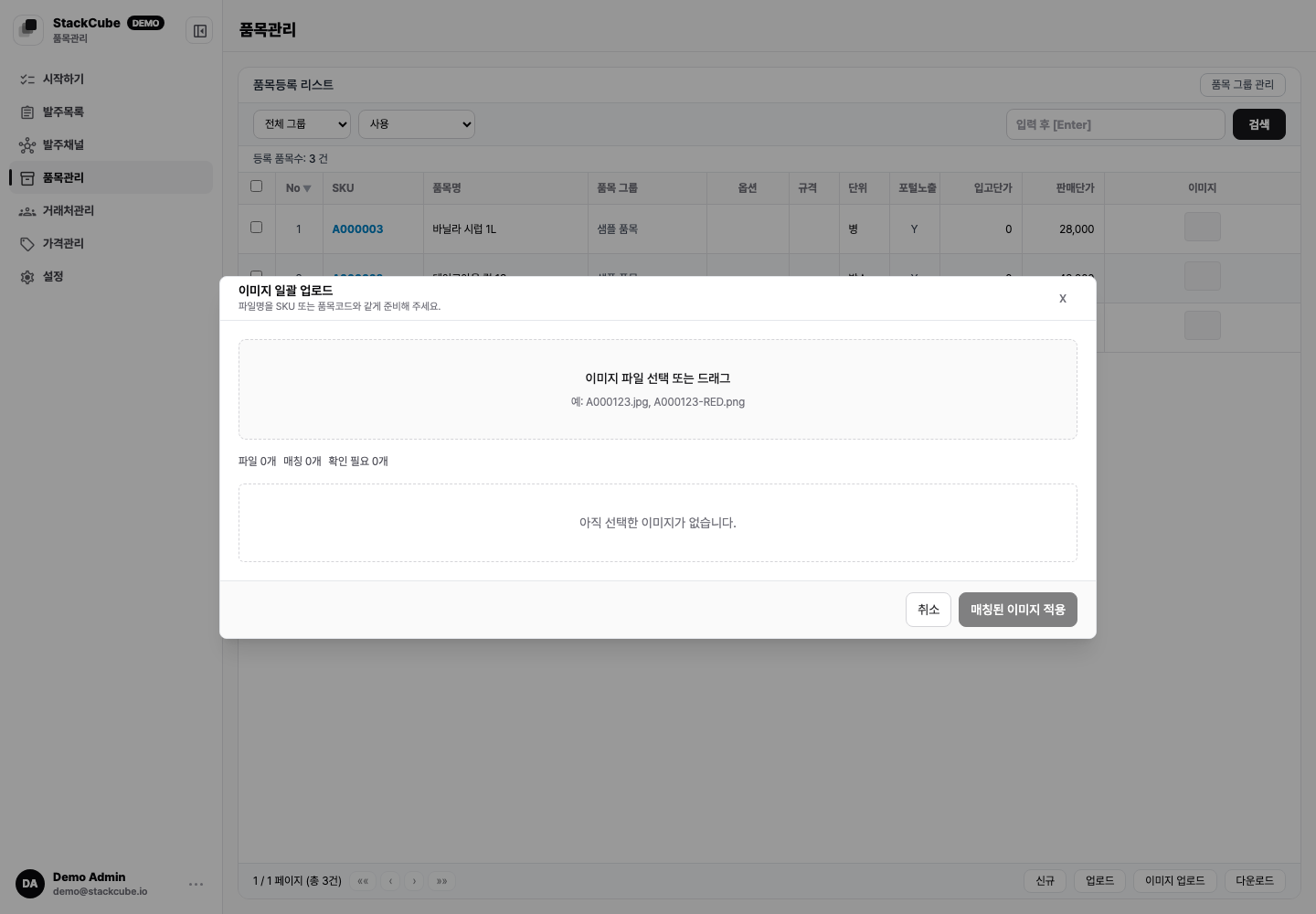
Before applying images:
- Include the SKU or item code in each filename.
- Check sample matches before applying.
- Compress very large images before upload.
- Rename unmatched files instead of forcing them onto the wrong item.
Images appear in the order portal. For internal-only items, finish the name, specification, and unit first.
Edit selected items#
Select multiple rows to download them, edit common fields, delete items, bundle SKUs, or split a bundle.
Deletion and bundle changes also affect pending orders, the portal, and price rules. Check pending orders before changing active items.
Check after upload#
- Confirm item codes and SKUs are unique.
- Confirm only portal-ready items are visible.
- Review items with blank sales prices.
- Check price-tier rules for items with customer-specific prices.
- Create a sample order and verify item matching and price display.