Order review and approval#
An order received through a connected channel appears in the pending list in Order management. StackCube creates a draft, and a reviewer decides whether it is ready for approval and fulfillment.
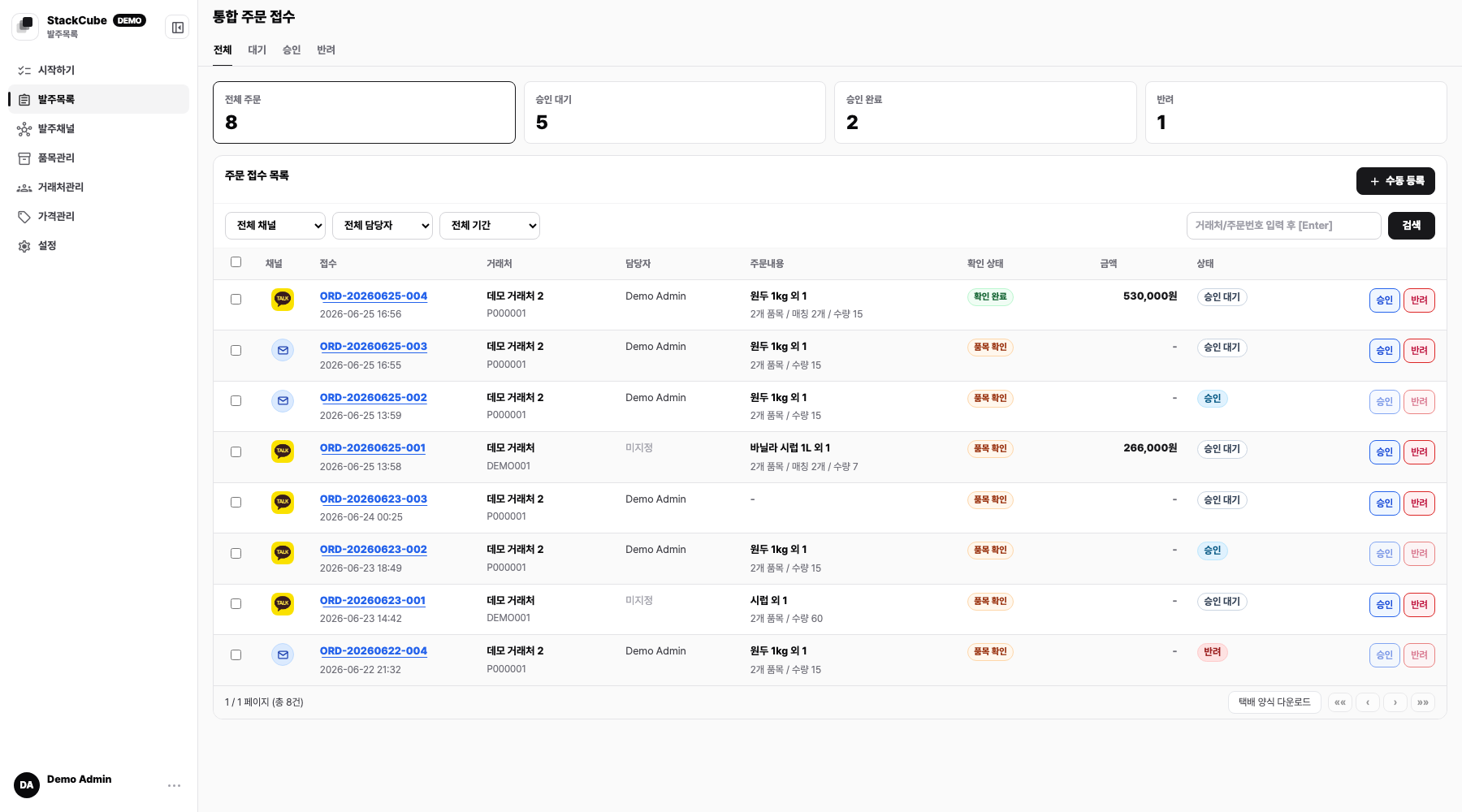
Find the first real order#
- Open Order management.
- Search by customer name, order number, or sender information.
- Check the channel icon and received time.
- Open the order and compare the source with the organized lines.
If the order is missing, check Channels → Intake history. A source with no order requires a look at its processing state. No source usually means the channel setup needs attention.
Review before approval#
- Correct customer
- Item and option match
- Quantity and unit
- Default or customer-specific price
- Order currency
- Delivery date, address, and request
- Possible duplicate
- Available source message and attachments
Keep the order pending when an item or price is unresolved.
Fix an unmatched item#
Choose the correct catalog item on the order line. If the same customer term appears again, add it under Matching knowledge.
For a new item, create the item first, then return to the order and match it again.
Add an order manually#
Use Add manually for phone orders, in-person orders, or a channel that is not connected yet.
| Tab | Use it for |
|---|---|
| Manual | Enter the customer, items, and quantities directly |
| Paste an email body and attach files | |
| KakaoTalk | Paste a conversation and attach files |
| SMS | Paste a message and attach MMS files |
| Order portal | Open the selected customer's portal and order on their behalf |
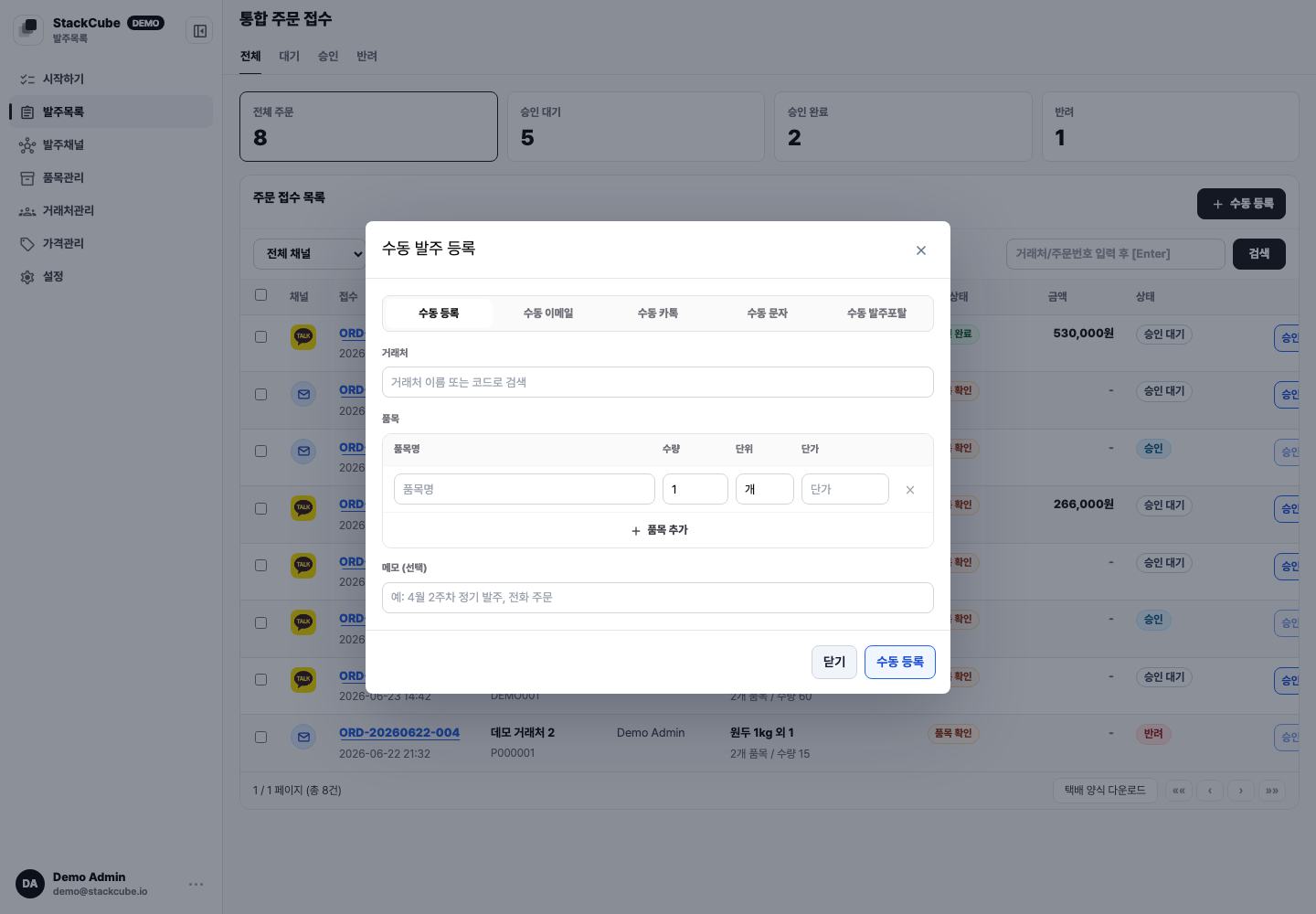
You can attach up to 10 image, XLSX, CSV, or PDF files. Each file must be 10 MB or smaller, and all attachments together must be 30 MB or smaller.
Manual intake is a fallback for testing and exceptions, not a replacement for a connected channel.
Filters and assignees#
Filter Order management by channel, date, assignee, or search term. When customers have internal assignees, use the assignee filter to divide the queue.
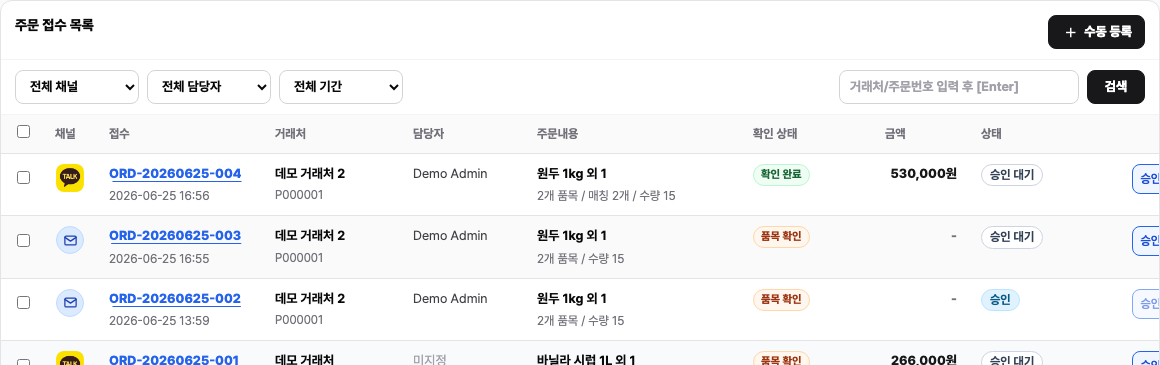
Select several orders to change their assignee or delete them together. Before deleting, check that none of the selected orders has already been shipped or sent to ERP.
Approve or reject#
Approve the order when the required fields match the source. Reject it or leave it pending when fulfillment information is missing or the order should not be processed.
After review, download an order spreadsheet or shipping file, or send orders to Ecount. File downloads are not restricted by approval status, so check approval and previous carrier submissions before shipping.
To correct an approved order, select Re-review from the order menu. An order cannot return to review while it is being sent to ERP or after it has been sent.
Send an approved order statement from Documents in the order and check its delivery history there. See Send order statements for the required settings.
See Handle review exceptions for repeated review issues. Select View change history from the order menu to find who edited an order.
Card-payment orders restrict approval before payment, content edits, and re-review. See Order portal card payments for results and cancellations.