Set up Ecount#
Ecount requires API verification with a sandbox key before it issues a production key. Complete the verification and production-key connection under Settings → Integrations → Ecount.
Connection sequence#
- Open Ecount's Issue API Certificate Key menu.
- Add the StackCube fixed IP from Register IP.
- Open API Verification Status and use an existing sandbox key or issue a new one.
- Enter the sandbox key and verification codes in StackCube, then run API verification.
- Add the required default values for failed APIs and verify them again.
- Select the person who will use the integration and issue a production key in Ecount.
- Enter the production key in StackCube and run Test connection.
Values to prepare#
- Ecount company code
- User ID that issued the sandbox key
- Customer and item codes for verification
- Warehouse code for document verification
Use customer and item codes that are available on the Ecount sandbox server. Choose codes that are easy to distinguish from production data.
1. Prepare a sandbox key and allow the IP#
Sign in to Ecount, then open:
Self-Customizing → Information Management → Issue API Certificate Key
- Select Register IP and add the StackCube fixed IP below.
- Select API Verification Status.
- Use an existing sandbox key, or select Issue Key to create one.
54.116.3.43If your company uses Ecount's PC IP blocking setting, make sure this IP is allowed there as well. A sandbox key is valid for two weeks.
2. Verify the APIs in StackCube#
Open Settings → Integrations → Ecount → API verification and enter:
- Company code
- User ID that issued the sandbox key
- Sandbox API certificate key
- Customer code for verification
- Item code for verification
- Warehouse code
Select Verify APIs. StackCube checks the eight APIs it uses.
| API | What StackCube checks |
|---|---|
| Item list | Read Ecount items |
| Inventory balance list | Read inventory by item |
| Create item | Create a sandbox item |
| Create customer | Create a sandbox customer |
| Create quotation | Create a sandbox quotation |
| Create sales order | Create a sandbox sales order |
| Create sale | Create a sandbox sale |
| Create purchase | Create a sandbox purchase |
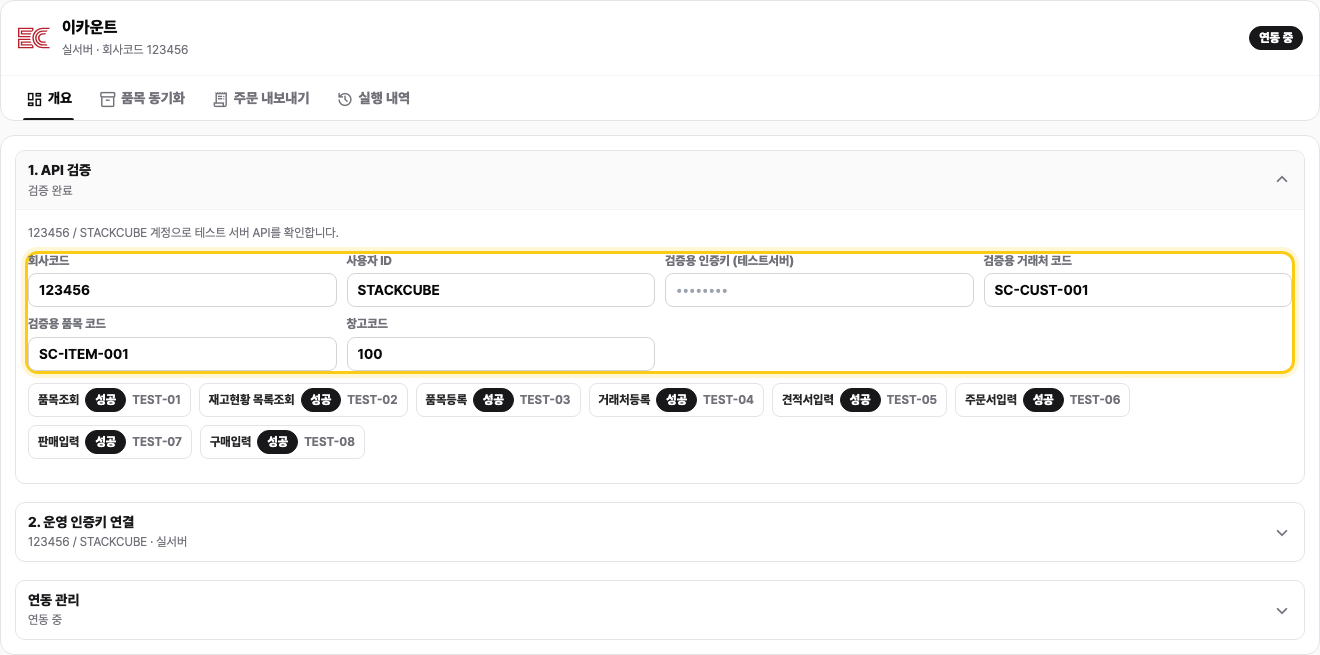
Verification may create SCV-P-... items, SCV-C-... customers, and test documents on the Ecount sandbox server. It does not create production data.
3. Fix a failed API#
Read the Ecount response shown on the failed result. If a customer or document input API failed, first check whether your company has made additional fields mandatory on the corresponding Ecount input screen.
When StackCube shows a Default value field, enter a valid Ecount code or value for that field and verify the API again. For example, if Project is required, enter an existing Ecount project code. Arbitrary text may fail again.
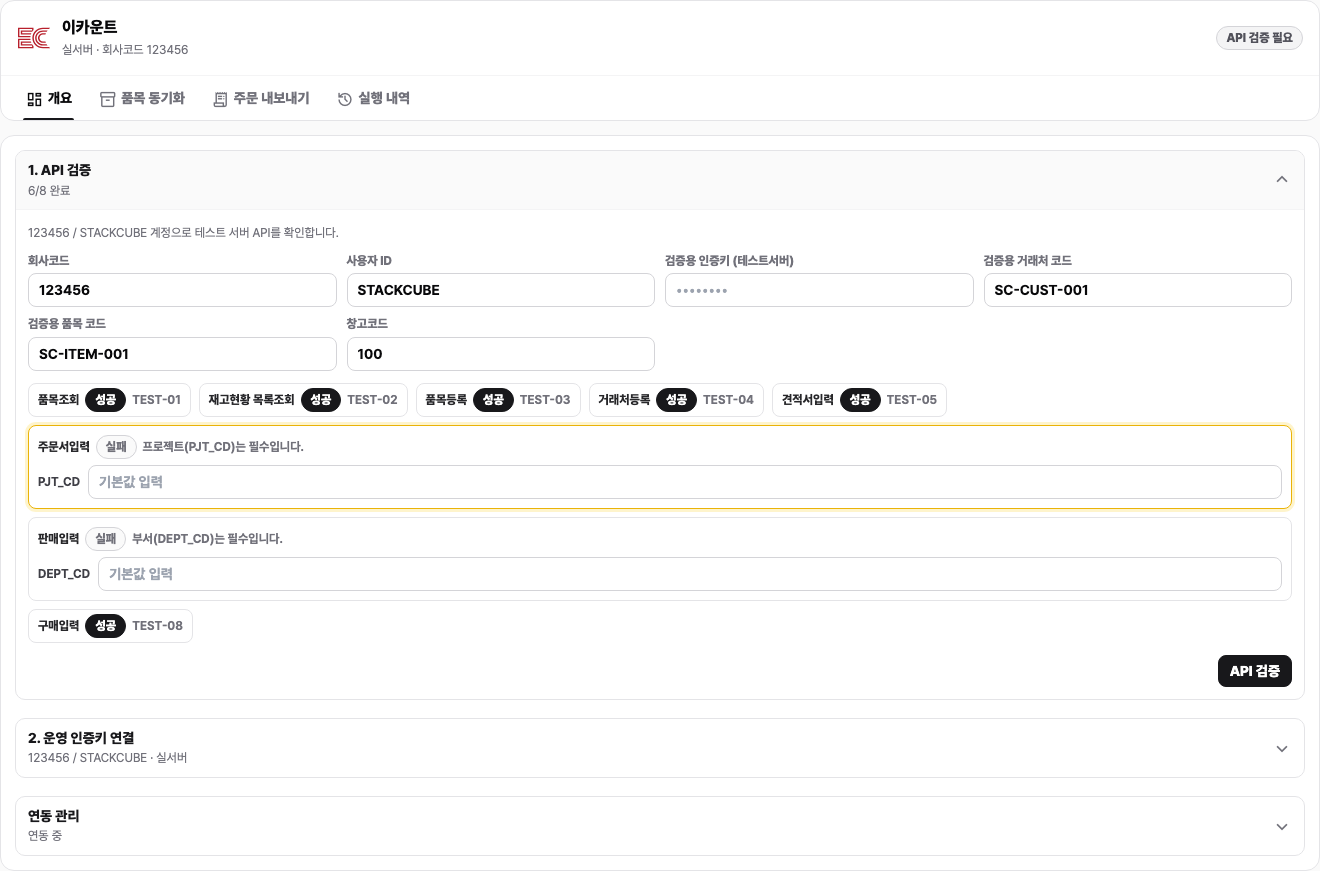
If the same API keeps failing, check:
- The user ID matches the ID that issued the sandbox key.
- The sandbox key has not expired.
54.116.3.43is allowed.- The customer, item, and warehouse codes exist on the sandbox server.
- The related Ecount input screen does not require another field.
4. Confirm verification and issue the production key#
Return to the Issue API Certificate Key page where you issued the sandbox key.
- Open API Verification Status and confirm that every API used by StackCube is marked as verified.
- Return to the previous page and select Issue Key.
- Select the person who will use the production key.
- Select Save.
- Copy the issued production API key.
Issue the production key only after all APIs used by StackCube are verified. A production key is valid for one year.
5. Connect the production key#
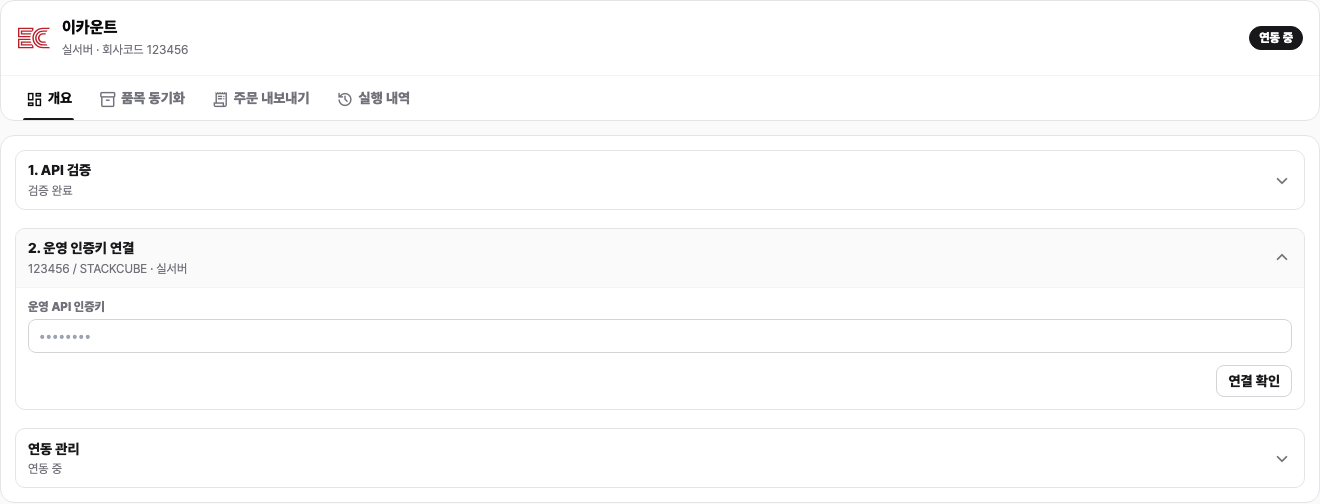
In StackCube, open Settings → Integrations → Ecount → Connect the production key and enter the production key. Do not enter the sandbox key again. Save the connection, then select Test connection.
6. Export orders#
Open Order export and choose Quotation, Sales order, Sale, or Purchase. Match the warehouse code, VAT price basis, and taxable and tax-exempt transaction type codes with your Ecount settings.
Turn on Export on approval to create an Ecount document after an order is approved. Test one order first and compare its customer code, item code, quantity, price, and tax values.
Add order mappings when you need to send an address, order number, or memo to an Ecount department, project, or long-text field. An export stops when a source marked as required is missing from the order.
7. Check results#
Open Run history to see connection tests, item syncs, and document exports. For a failed run, check the response and correct the order or code before retrying.
A retry may create a production Ecount document. Confirm that the document does not already exist before retrying.