Sync Ecount items#
Complete Ecount setup first and confirm that the connection is Active. Item sync is unavailable when account changes have not been saved.
1. Choose the items to import#
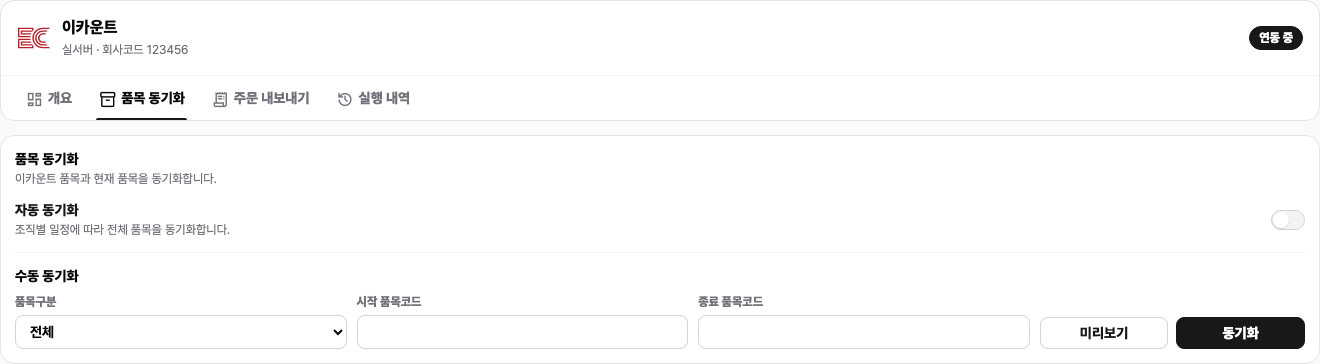
Open Settings → Integrations → Ecount → Item sync.
- Select an Item type if needed.
- To import only part of the catalog, enter the Starting item code and Ending item code.
- Leave the item-code range blank to import the full catalog.
- Select Preview.
2. Review the preview#
A preview does not save or modify any items. Review these counts and the item-level changes:
- New: items that will be added to StackCube
- Updated: items with changes to the name, specification, unit, barcode, price, or other fields
- Unchanged: items with no changes
- To deactivate: items that a full sync will deactivate
- Skipped: items missing required information or otherwise unavailable for import
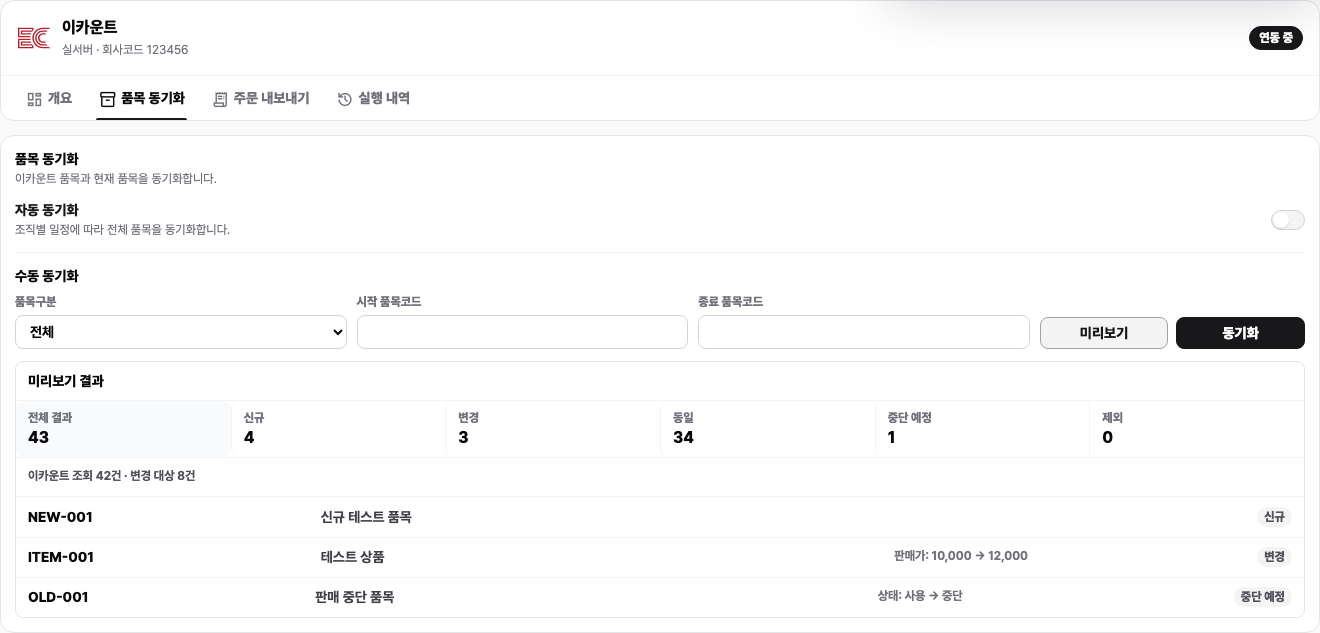
When an Ecount response reaches 10,000 items, the preview shows the first page only. The number of items to deactivate is confirmed after the full sync finishes.
3. Sync the items#
If the preview is correct, select Sync.
- A full sync deactivates StackCube items that are not found in Ecount.
- A partial sync with an item type or item-code range leaves items outside the selected filters unchanged.
- If the inventory balance API is not authorized, existing item statuses are preserved and only new items are added as Active.
After the sync finishes, check the new and updated values in the item catalog.
4. Set up automatic sync#
Turn on Automatic sync to refresh the full catalog on a schedule.
- Select Daily or Weekly.
- For a weekly schedule, select the weekday.
- Confirm the run time and time zone.
- Select Save at the bottom of the page.
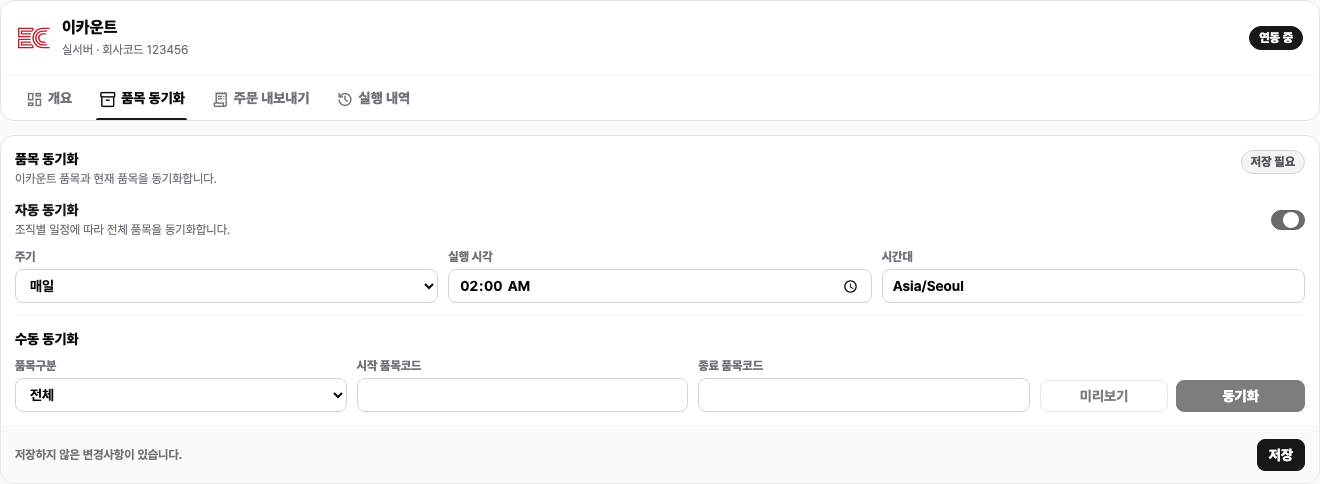
Automatic sync always runs against the full catalog without item filters.
5. Check the result#
Open Run history to review manual and automatic item syncs. If a run fails, read the error, correct the Ecount item data or API authorization, and run it again.