Order settings#
Open Settings → Orders to decide how new orders are reviewed and approved.
Default order assignee#
Select the team member assigned to a new order when no assignee is already set. A customer assignee or an assignee already saved on the order takes priority.
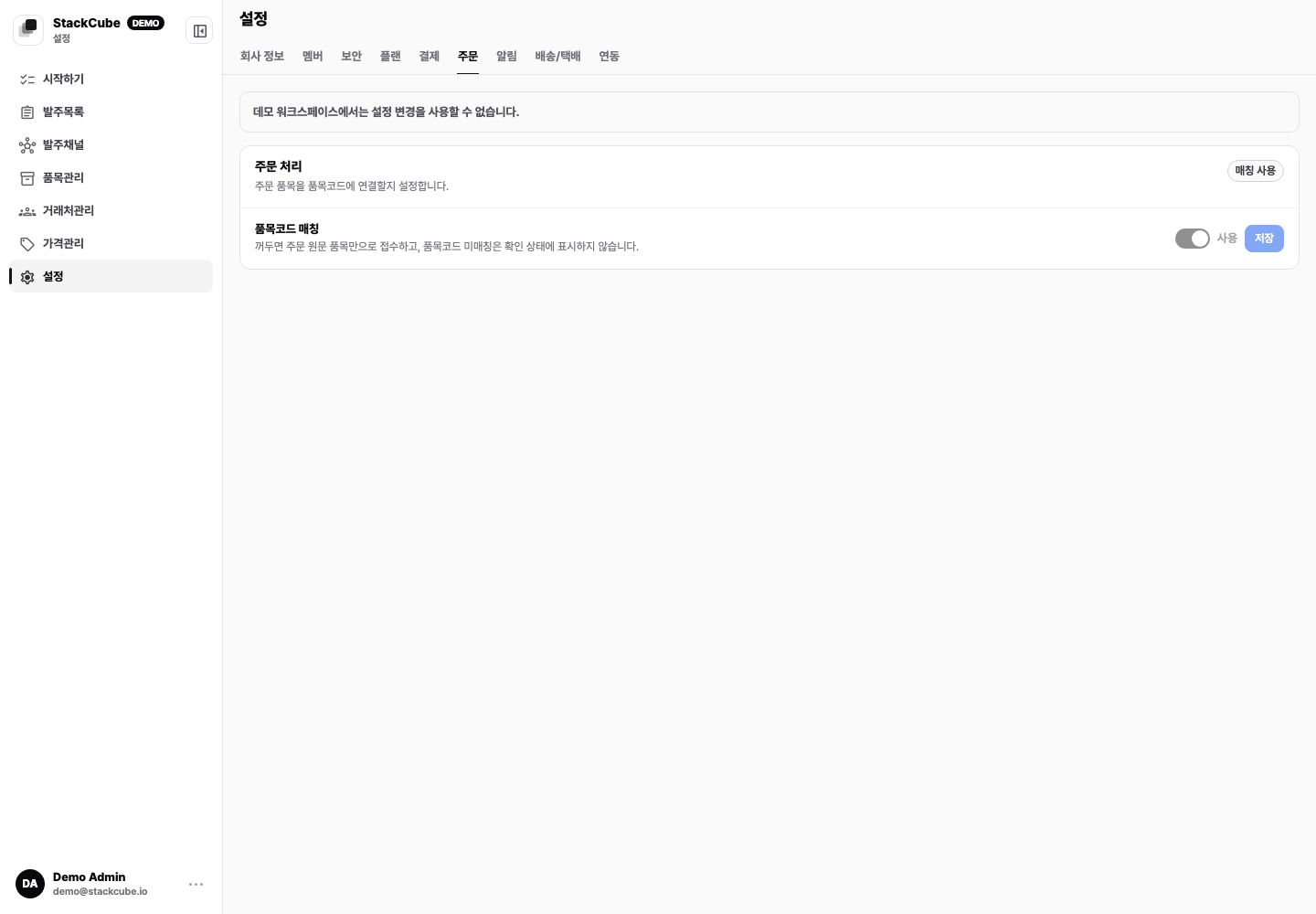
Item-code matching#
When this is on, StackCube compares order item names with the catalog and marks items it cannot find. Turn it off only for an early test before the catalog is ready. Keep it on when receiving customer orders.
Require a unit price to approve#
When this is on, an order cannot be approved if one of its items has no unit price. For a free item, a reviewer must enter a price of 0.
Send statement on approval#
When this is on, StackCube sends the final order statement to the customer's mobile number after approval. To send a copy to the order assignee, add a mobile number to that person's My profile.
Enter the deposit account, stamp, and signature image used on statements under Settings → Company info. See Send order statements for delivery instructions.
Test the settings#
- Receive a new test order.
- Check its default assignee and item matches.
- Confirm that an order without a unit price cannot be approved.
- If statement delivery is on, send to a test mobile number and check the result.