Place an order in the portal#
Open the order portal address your supplier shared and follow these steps. Contact your supplier about login accounts or order details.
1. Sign in#
Select Login and enter the ID and password supplied to you. If you do not have an account, select Sign up, submit a request, and wait for your supplier's approval.
If you forget your password, select Find password and enter your customer ID. A reset link is sent to the registered email. If you cannot receive it, ask your supplier to check the registered email and account.
After signing in with an initial password, open Profile → Password to change it.
2. Choose items#
- In the ordering tab, search by item name or code, or select an item group.
- Select any required options, such as color or specification.
- Check the price and unit, enter a quantity, and add the item to the cart.
If items or prices are missing, check that you are signed in with the right customer account. Ask your supplier before ordering if an item is unavailable or a price differs from your agreement.
3. Check the cart and submit#
- In Cart, check items, options, quantities, and the total.
- Enter the recipient, phone number, and address under Shipping information.
- Add any delivery request in the memo.
- Select Place order. Customers using card payments see Pay now instead.
- Check the result and order number.
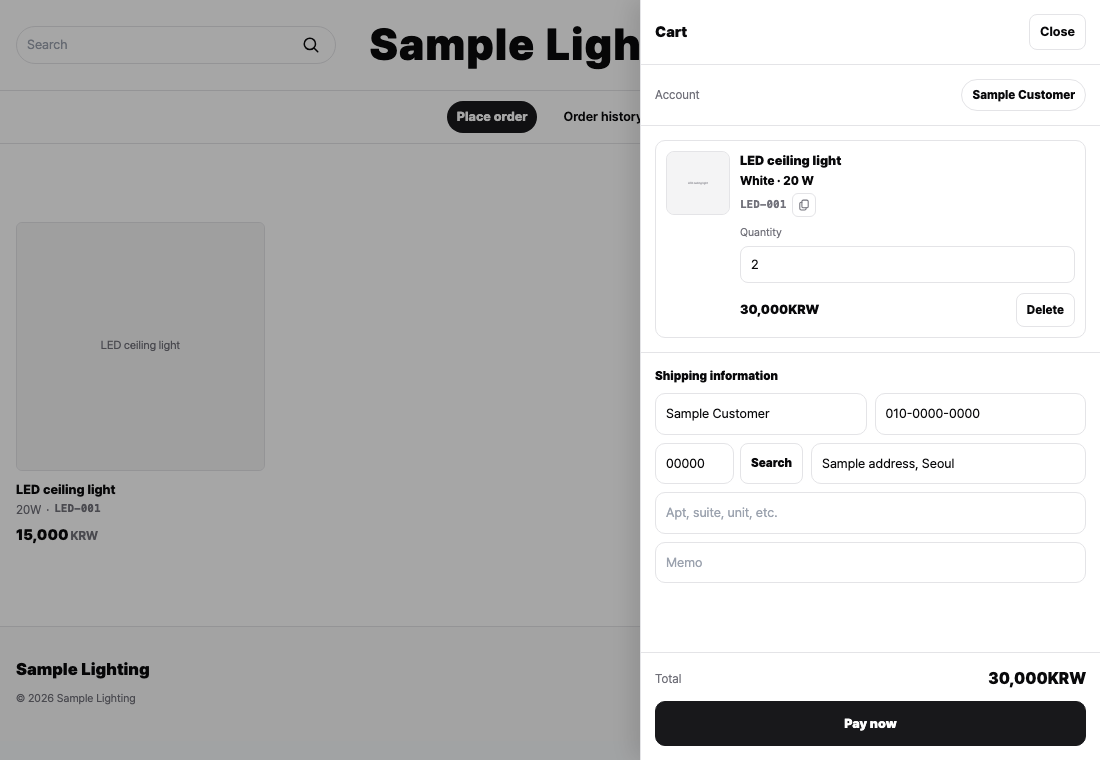
If the status is Checking payment, do not pay again. Wait for the result and contact your supplier if it does not change. If an unconfirmed item price blocks payment, ask your supplier to check pricing.
4. Check order history#
Open Order history to find the order number and status. Open Details to check its items and quantities.
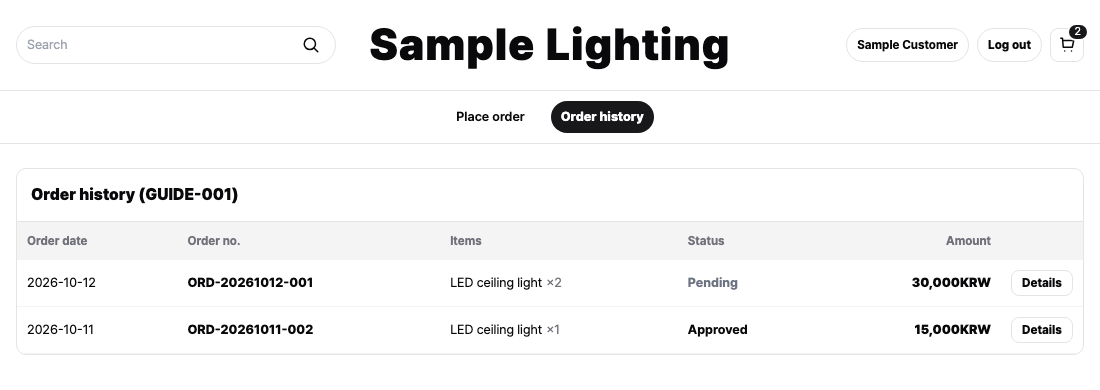
| Status | Meaning |
|---|---|
| Pending or Reviewing | Your supplier needs to review the order. |
| Approved | Your supplier approved the order. |
| Rejected | Your supplier did not accept the order. Contact them for the reason. |
| Awaiting payment or Checking payment | The card-payment result needs to be confirmed first. |
Approval does not mean the order has shipped or been delivered. Check the delivery schedule with your supplier.
Request a change or cancellation#
Give your supplier the existing order number and the items or quantities to change. Submitting a new order as a correction can create a duplicate; check what happened to the original first.
Ask your supplier to cancel card payments. Confirm the original payment result before paying for the same order again.