Upload to Daesin#
Download a shipping file from StackCube, then register it in Daesin. The Daesin preset is an XLSX format based on the official sample's columns. If your team has a saved format tested with Daesin, use it.
1. Download a Daesin shipping file from StackCube#
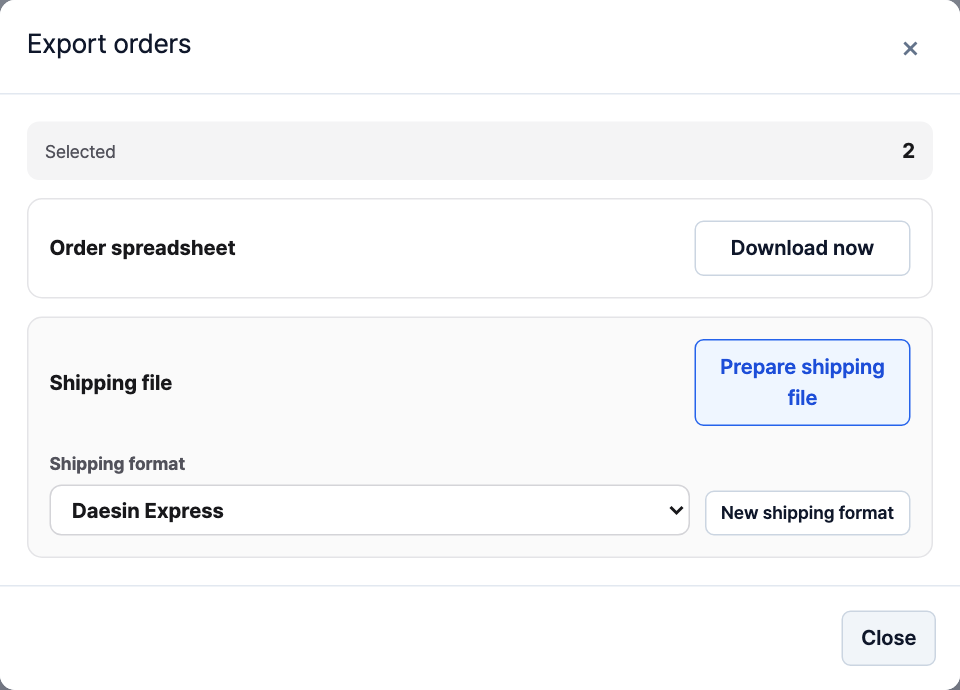
- In Order management, select the order checkboxes and click Export. See order selection steps
- Under Shipping format, choose Daesin or your team's saved format, then click Prepare shipping file.
- Review recipients, addresses, phone numbers, postal codes, and the box quantity, freight, and sender values described below. Edit values as needed.
- Click Export N shipments to download the selected format. The preset downloads as XLSX; saved formats use their configured file type. If the button is hidden, clear the row or cell selection.
The column positions and defaults below apply only to the built-in Daesin preset. Saved formats can use different columns, quantity fields, and freight settings; check the fields in your saved format.
- Box quantity: Column E is the number of boxes to ship, not the item count. Fill any blanks and check it again after merging or splitting shipments.
- Freight and service: Defaults are 박스 for packaging, 현불 for payment, and 택배 for service. They do not change automatically with the order's payment terms. Freight, additional charges, and total freight are blank by default; check them against your contract.
- Sender: Check the sender name and phone in columns L and M. The preset uses sender fields that select the customer for direct shipping, so verify the actual sender for those orders.
See Edit shipping files to change values, or Custom shipping formats to save fixed values and mappings for repeated use.
2. Register the downloaded shipping file in Daesin#
Sign in to the Daesin customer logistics system with the account credentials issued by Daesin.
Check the file format#
The table below describes the current StackCube preset's 31 columns. Compare them with the official Daesin Excel sample. Check custom formats against the registration format your team uses.
| Columns | StackCube preset content |
|---|---|
| A, B | 수화주전화1, 수화주전화2 — recipient phones |
| C, D | 수화주명, 주소 — recipient name and address |
| E, F | 수량, 품명 — box quantity and item summary |
| G, H, I | 포장 (박스), 운임구분 (현불), 운송상품 (택배) |
| J | 우편번호 — postal code |
| K | 도착영업소 — destination branch; blank by default |
| L, M | 발화주명, 발화주전화번호 — sender name and phone |
| N, O, P, Q | 발송제비용, 운임, 도착제비용, 총운임 — charges and total; blank by default |
| R | 특기사항 — delivery note |
| S–AE | 내품표기1–13 — contents fields; blank by default |
Keep the preset's header row and column order. The official sample is XLS, while StackCube preset downloads are XLSX. Check the file types supported by the registration screen.
Register the file and check the result#
After signing in, use the Excel file registration screen and check the following. Follow Daesin's on-screen instructions for specific menus, buttons, submission, and label printing.
- Select the downloaded file and check that its columns match the registration format.
- Review the imported count, recipients, addresses, quantities, freight, and senders. Correct any errors.
- Complete registration following Daesin's instructions, then check the submission result and waybill details. Check previous submissions before uploading the same orders again.
The column reference is based on the official sample. Screens after login have not been verified for this guide; confirm the registration format, supported file types, and freight terms with your Daesin branch.