Upload to Logen#
Download a shipping file from StackCube, then register it in Logen. The Logen preset is an XLSX format based on the official example. If your team has a saved format tested with Logen, use it.
1. Download a Logen shipping file from StackCube#
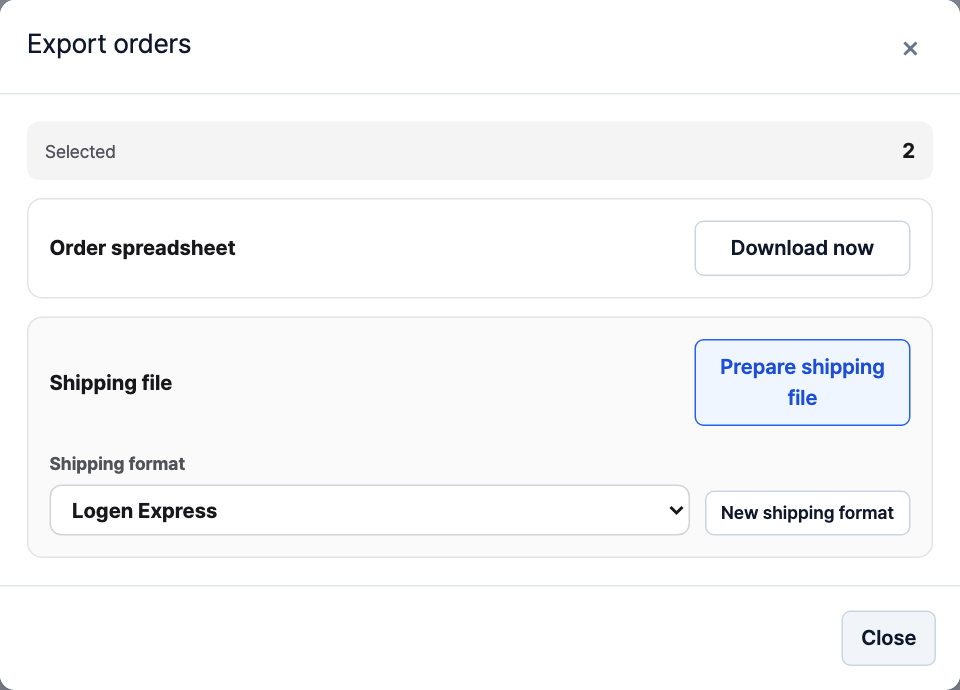
- In Order management, select the order checkboxes and click Export. See order selection steps
- Under Shipping format, choose Logen or your team's saved format, then click Prepare shipping file.
- Review recipients, addresses, phone numbers, and the box quantity and freight values described below. Edit values as needed.
- Click Export N shipments to download the selected format. The preset downloads as XLSX; saved formats use their configured file type. If the button is hidden, clear the row or cell selection.
The column positions and defaults below apply only to the built-in Logen preset. Saved formats can use different columns, quantity fields, and freight settings; check the fields in your saved format.
- Box quantity: Fill column F with the number of boxes to ship, not the item count. Logen creates three linked waybills when this value is 3. Check it again after merging or splitting shipments.
- Freight: Check column G's freight charge and column H's payment code against your contract. The preset's
010does not change automatically for prepaid, collect, or credit orders. Edit the shipping file or configure fixed values and mappings in a custom format when different values are needed.
2. Register the downloaded shipping file in Logen#
Sign in to the Logen business system and open 예약관리 → 주문등록/출력(복수건).
Check or configure the Excel type#
Logen reads file columns through a saved Excel type (엑셀타입). Select an existing type if it matches your file. Configure one before first use or when the column layout changes.
The settings and column table below apply to the built-in Logen preset. Map saved formats to their actual file columns. If a saved format has values in B or J, map those columns to the appropriate fields.
- Open 타입설정, select an Excel type to save, and enter its name.
- Select 제목있음 to treat the first row as headers.
- Use 파일열기 to open the downloaded file, map each column to the corresponding Logen field below, and save. For the preset, leave its empty B and J columns as 선택안함 (unassigned); keep these columns in the file.
| Column | StackCube preset content |
|---|---|
| A | 수하인명 — recipient name |
| B | Empty column |
| C | 수하인주소 — address |
| D | 수하인전화번호 — phone |
| E | 수하인핸드폰번호 — second phone |
| F | 택배수량 — box quantity |
| G | 택배운임 — blank by default |
| H | 운임구분 — defaults to 010 |
| I | 품목명 — item summary |
| J | Empty column |
| K | 배송메세지 — delivery note |
This table describes the current StackCube preset. Map custom formats to their actual columns separately. Official Logen Excel type instructions
Register the file and print labels#
- Select the matching 엑셀타입, then open the downloaded file with 파일열기.
- Review and correct errors. Check valid rows, their count, shipping details, and the sender shown in Logen.
- Click 서버전송, check registration results under 변환완료, then print labels.
Sender: The preset has no sender columns. Check sender details in Logen. Use a custom format if the file needs to supply a different sender for each order.
Official Logen Excel conversion instructions
These steps follow the official Logen user manual. Confirm account settings and freight terms with your contracted branch.