Sync Ecount customers and prices#
Connect Ecount first and confirm the connection is active. Complete item sync before importing special prices.
1. Configure web login#
Open Settings → Integrations → Ecount → Partner sync.
- Check the connected Company code.
- Enter the User ID for Ecount web login. Leave it blank to use the ID from Overview.
- Enter the Web login password and select Save password.
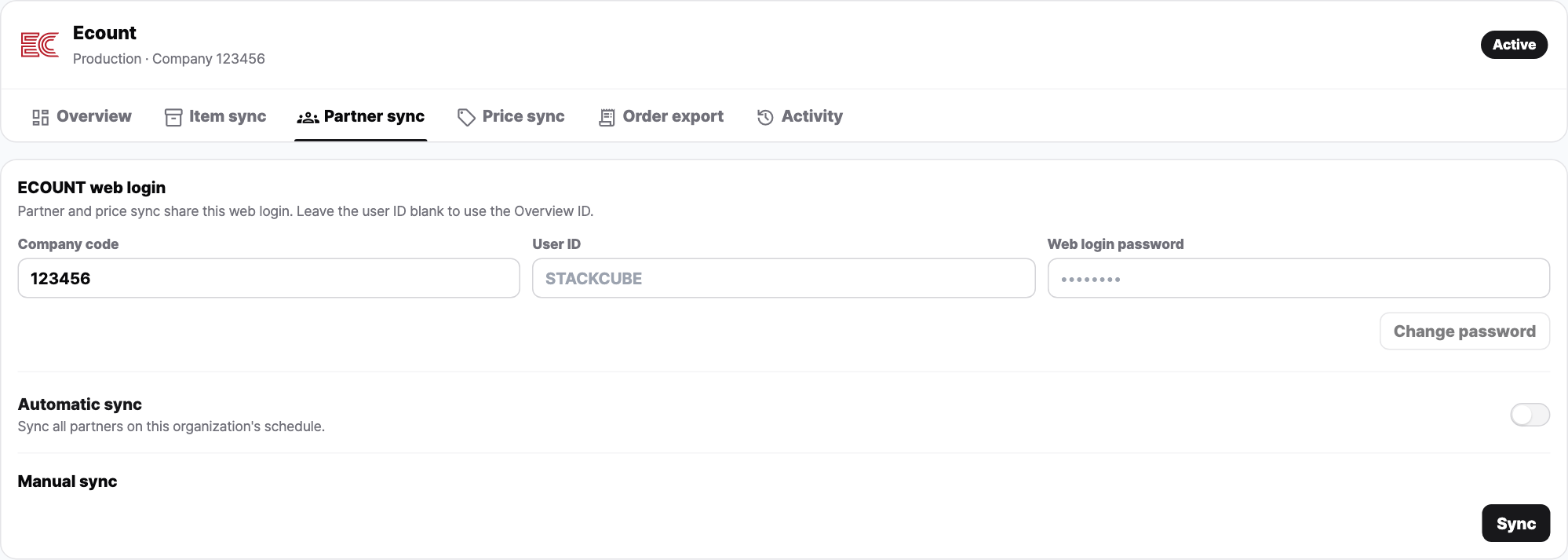
The API key and web login password are different credentials. Customer and price sync share one web login account. Saving its password does not enable automatic sync.
After changing the company code or login ID, save the password for the current account again. You cannot change the account while a sync is running.
2. Import customers#
- In Partner sync, select Manual sync → Sync.
- Read the confirmation and start the sync.
- Check Activity, then verify codes and details in customer management.
Customers in the imported list are set to active. Customers previously managed by this integration that are missing from the list are deactivated. This does not deactivate every customer managed through other sources.
3. Import special prices#
- Confirm that Item sync has completed.
- Open Price sync.
- Select Sync special prices and confirm.
- After completion, check price lists and customer price tiers in Customer-specific pricing.
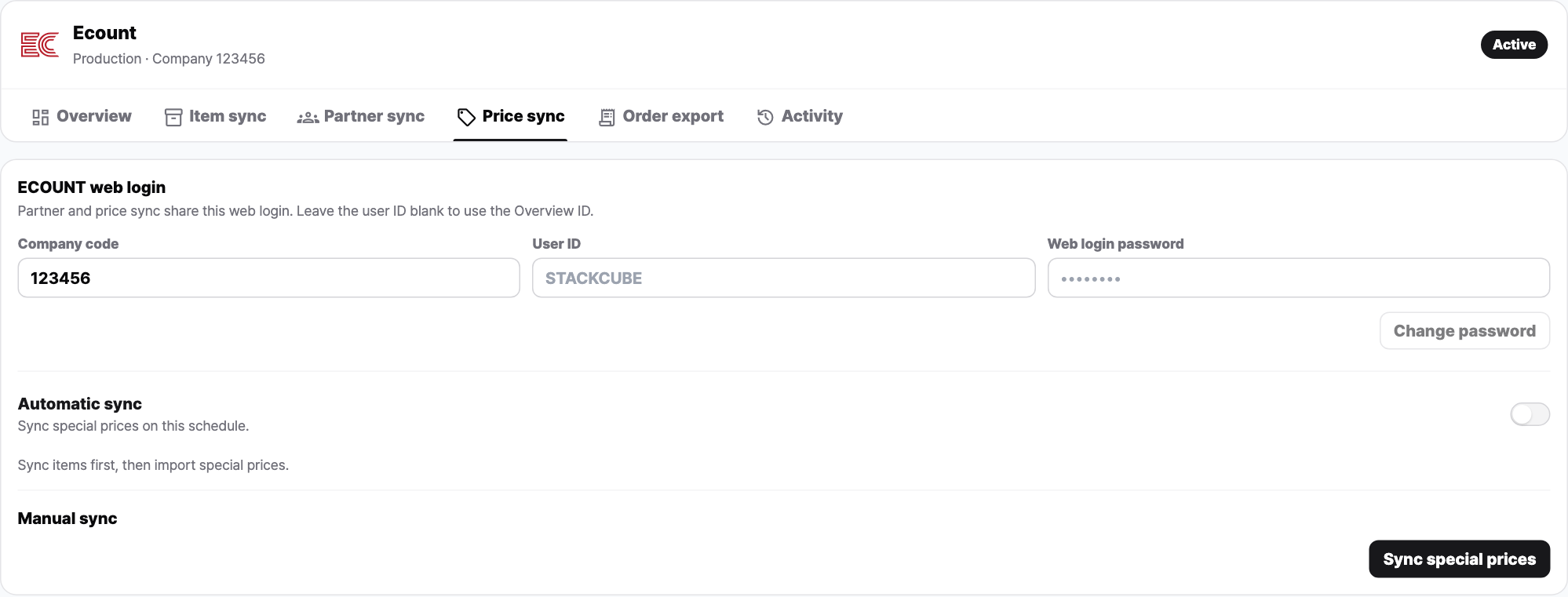
StackCube downloads and validates the special-price file before applying it to price lists and customer price tiers. Check that one real order receives the expected price as well.
4. Schedule syncs and handle failures#
Configure customer and price schedules separately in their respective tabs. Enable Automatic sync, choose daily or weekly, set the time and timezone, then Save. Scheduled customer sync covers the full customer list.
Manual sync may be unavailable while account or schedule changes are unsaved, or another sync is running.
Check results and responses in Activity. When Retry importing downloaded file is available on a failed run, you can retry importing the file already downloaded. Needs review means the operation is locked to prevent duplicate runs; ask an administrator to investigate.
If you cannot start after configuring web login, check the connection and account, then include the displayed error in a support request. Do not send passwords or API keys.