Order portal card payments#
Portal card payments use Danal for organizations in Korea with KRW as their default currency. They collect payment for customer orders and are separate from StackCube subscription billing.
1. Connect card payments#
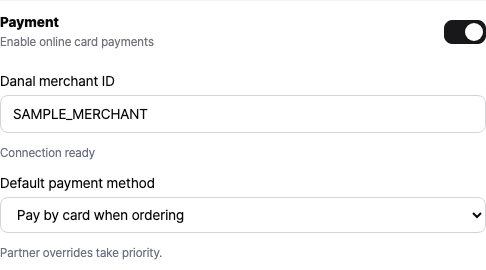
- Open Channels → Order portal and enable Enable online card payments.
- Enter your Danal merchant ID.
- Choose the Default payment method and save the settings.
- Check that the connection is ready. If it is not, check the merchant ID and connection status, then contact support.
| Default payment method | Ordering behavior |
|---|---|
| Order without online payment | Submit an order without paying online. Continue handling settlement separately. |
| Pay by card when ordering | Complete card payment from the cart before the order is received. |
The demo opens a KRW 1,000 test payment window. Do not enter real card details in the demo.
2. Set a customer override#
Open a customer in Customers and check Portal payment method.
- Use organization default: follow the portal's default setting.
- Order without online payment: this customer submits orders without online payment.
- Pay by card when ordering: this customer pays by card.
A customer override takes priority over the organization default and stays unchanged when that default changes. Card payment does not apply while online card payments are disabled.
3. Payment and approval#
The customer checks quantities, prices, and delivery details in the cart, then selects Pay now. Items without confirmed prices cannot be paid for. Check item prices and customer-specific pricing first.
Payment and order approval are separate. In Orders, confirm payment, review the order, and approve it. A card-payment order cannot be approved until payment is complete.
| Payment status | Next step |
|---|---|
| Awaiting payment | Payment is incomplete. The customer follows the cart instructions to continue. |
| Paid | Review the order and amount before approval. |
| Checking payment | Do not pay again. Use Refresh payment status to check the result. |
| Payment canceled | Check the cancellation result and order status separately. |
If checking continues, follow the admin screen instructions and check the Danal transaction record. An uncertain result restricts further payment to prevent duplicate charges. Use full cancellation only when it becomes available in the screen.
4. Cancel the full payment#
- Open the order in the admin workspace with order approval permission.
- When Cancel full payment is available, check the amount and actual transaction.
- Confirm cancellation and check for Payment canceled.
- Handle the order status and any existing ERP document separately.
This cancels the full amount. Content edits, deletion, and re-review are restricted for card-payment orders. To change items or amounts, cancel the existing payment and create a new order. Canceling payment does not reject the order or cancel its ERP document.
Customers should ask their supplier to cancel a payment. Share Place an order in the portal for customer instructions.