Custom shipping formats#
Select a built-in format directly in Order export. Create a custom format when your contract requires different freight values, column order, or sender fields.
Create a custom shipping format#
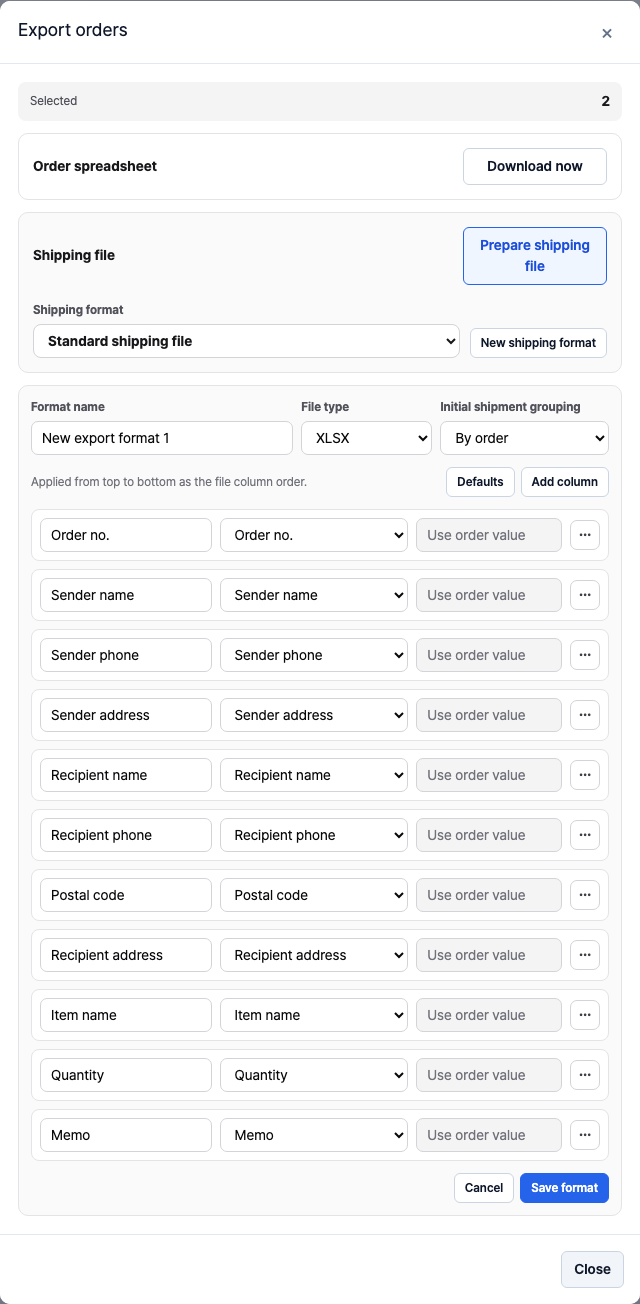
Users with settings management permission can select New shipping format in the export window, or edit a saved custom format.
- Set the name and File type: CSV or XLSX.
- Choose an initial shipment layout by order or by item.
- Set column headers and order, then select an order field or a fixed value for each column.
- Add value mappings where your carrier requires different codes or labels.
- Save the format and check a sample file.
Built-in carrier formats cannot be edited directly. Create a new shipping format when you need different columns.
Logen maps file columns through its Excel type settings. If you change the columns, configure a matching Excel type as described in Upload to Logen.
Sender defaults#
When an order has no sender details, StackCube uses defaults from Settings → Shipping/Carrier. Update them when your shipping location changes. The custom Sender Name (Partner for Direct Shipping) field uses the destination and customer details, so review the resulting sender information.
Add company-specific carrier or service names as aliases under Settings → Shipping when needed.