Send orders to Ecount#
Connect Ecount before configuring order export. This feature creates an Ecount document when you approve an order. Downloading spreadsheets or shipping files with Export in the order list is a separate workflow.
1. Configure automatic export#
Open Settings → Integrations → Ecount → Order export.
- Turn on Automatically export on approval.
- Choose Quotation, Sales order, Sale, or Purchase as the Export target.
- Set the Sales price basis to VAT excluded or VAT included.
- Expand Document defaults and enter the required Warehouse code, plus any employee and taxable or tax-exempt transaction type codes you need.
- Save your changes.
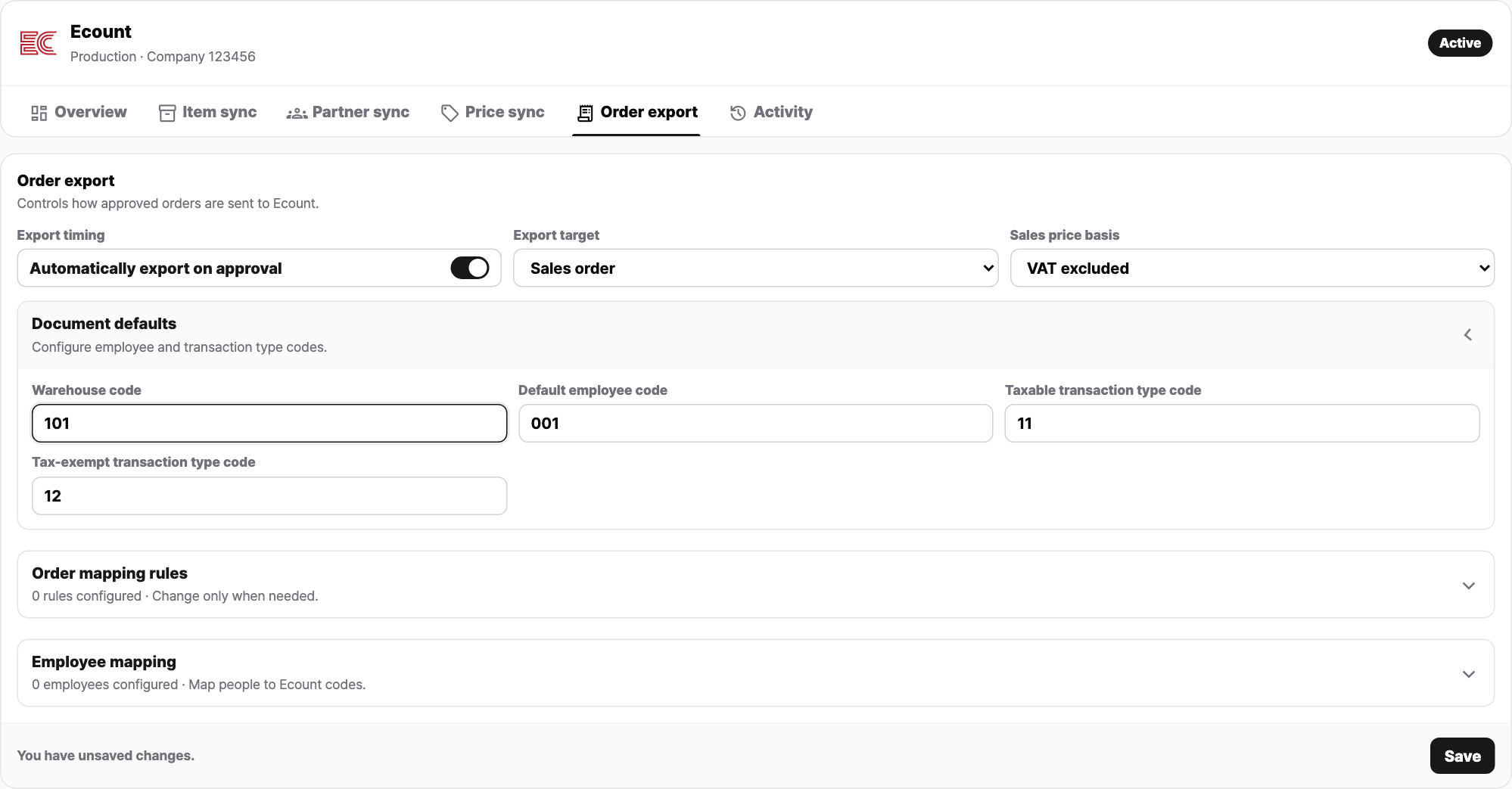
Enabling this setting does not bulk-send orders already approved. Start by approving one order that is still under review and check the result.
Employees and sending accounts#
Use Employee mapping to connect StackCube assignees to Ecount employee codes. An assignee without a mapping uses the default employee code.
| Document sending account | Configuration |
|---|---|
| Use shared account | Send through the currently connected shared account |
| Use approver account | Register an Ecount login ID and API key for each approving user |
Approver mode requires credentials for the user who actually approves the order. Entering an employee code alone does not configure login credentials.
Additional address or memo fields#
Use Order mapping rules to map addresses, order numbers, or memos to Ecount fields. Provide valid defaults or mappings for fields your company requires. Export cannot proceed when a required source value is missing.
2. Review and approve an order#
- Open the order in Orders.
- Check customer and item codes, quantities, units, prices, and taxes.
- Approve the order.
- Check its ERP export status in the order list.
If required export values are missing, a confirmation may explain the reason and offer Approve without ERP. Cancel and fix the values when you need ERP export. Choosing Approve without ERP approves the order but skips export for that approval.
3. Check the export result#
| Order list status | What to check |
|---|---|
| Sending | The export is queued or processing. Wait for completion. |
| Sent | Compare the Ecount document with the order. |
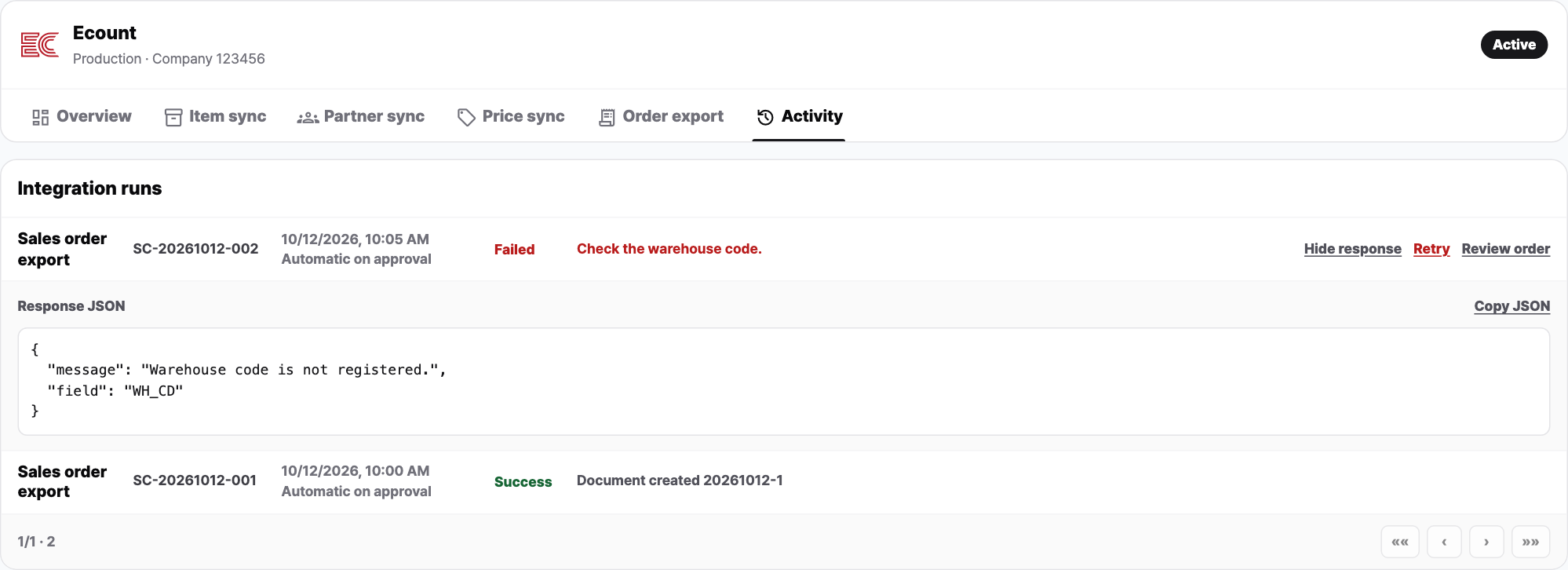
| Send failed | Check the failed response in Activity. |
| Needs review | The result is partial or uncertain. Check the Ecount document first. |
Settings → Integrations → Ecount → Activity also shows the order reference, result, and created document number.
4. Handle a failed order#
- Open View response for the order in Activity.
- Fix the reported cause, such as missing codes, warehouse or transaction settings, or approver credentials. Use Review order to find an order that needs correction.
- Confirm that the same document has not already been created in Ecount.
- If Retry is available on the latest failed run, send it again. The integration must be active.
Partial or uncertain results do not offer the same retry button as failed runs. Check the actual document first. If the outcome remains unclear, include the order reference and error in a support request.
Orders being sent or already sent to ERP have re-review restrictions. Do not assume that changing an order in StackCube updates a document already created in Ecount.